Levels
A level is one floor of the project. Every project has one to begin with, and everything you draw belongs to the level you are on.
The levels menu
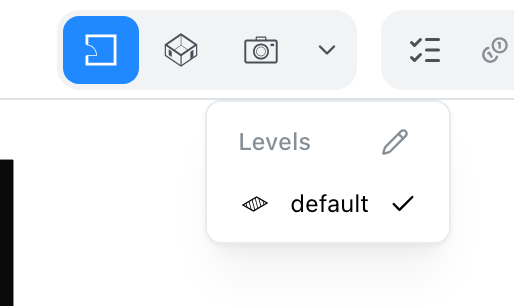
The name of the current level sits in the top bar beside the project's name. The levels are chosen from the chevron at the end of the view buttons (2D plan, bird's eye, walkthrough), whatever the view. It lists every level, highest first: click one to go there in that view. In the 2D plan, the eye beside another level draws that level under the one you are on, as a guide. In the bird's eye view, Below Levels shows or hides the levels under the current one. In a section view the list cannot be used. The pencil at the top opens the dialog below, where levels are added and measured. In the checklist, the Add a storey row's Open the levels button opens the same dialog.
The Levels dialog
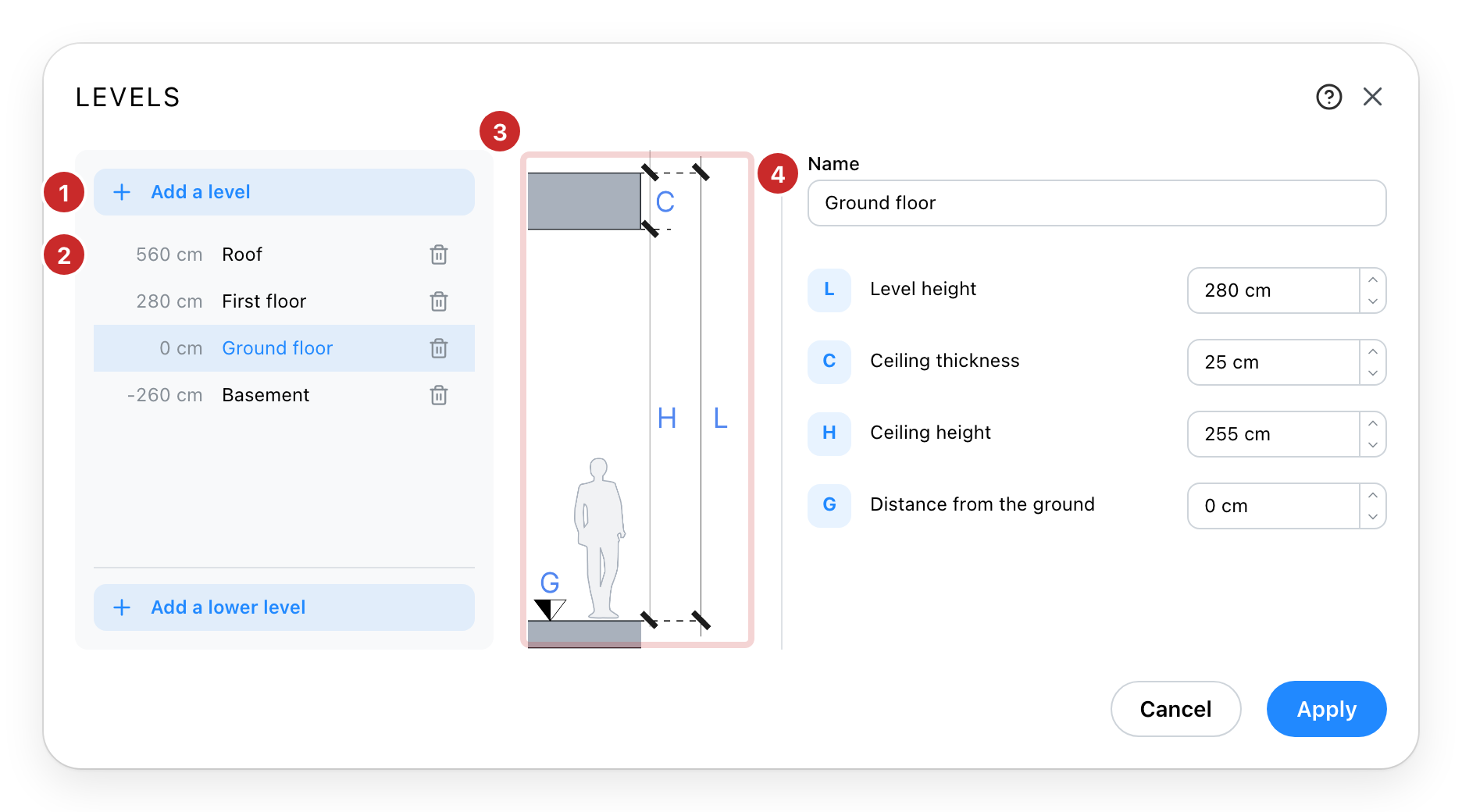
- Adding one. Add a level goes above the top level, Add a lower level below the bottom one. A new level starts empty. When your plan caps the number of levels, these buttons offer the upgrade instead.
- The levels themselves. Highest first, each with the height it starts at. Click one to edit the fields on the right. The bin removes a level and everything on it, after a confirmation. When your site sets a publishing order, the list follows it and rows are dragged to reorder.
- The section. Each letter marks the measurement of the same name, which is the quickest way to see which of the four you actually want to change.
- The level's own settings. The name appears in the level menu and on printed plans. Level height is floor to floor; ceiling height is floor to ceiling; the difference between them is the ceiling's own thickness. Distance from the ground is where the level starts.
Nothing changes in the project until you press Apply. Cancel, or closing the dialog, drops every change.
See also
- Drawing Tools draw on the level you are standing on.
- Area Calculation measures the levels you keep.