Finding a project
The tools above the list search the view or the folder open on the left. Changing folder clears the search and the filters.
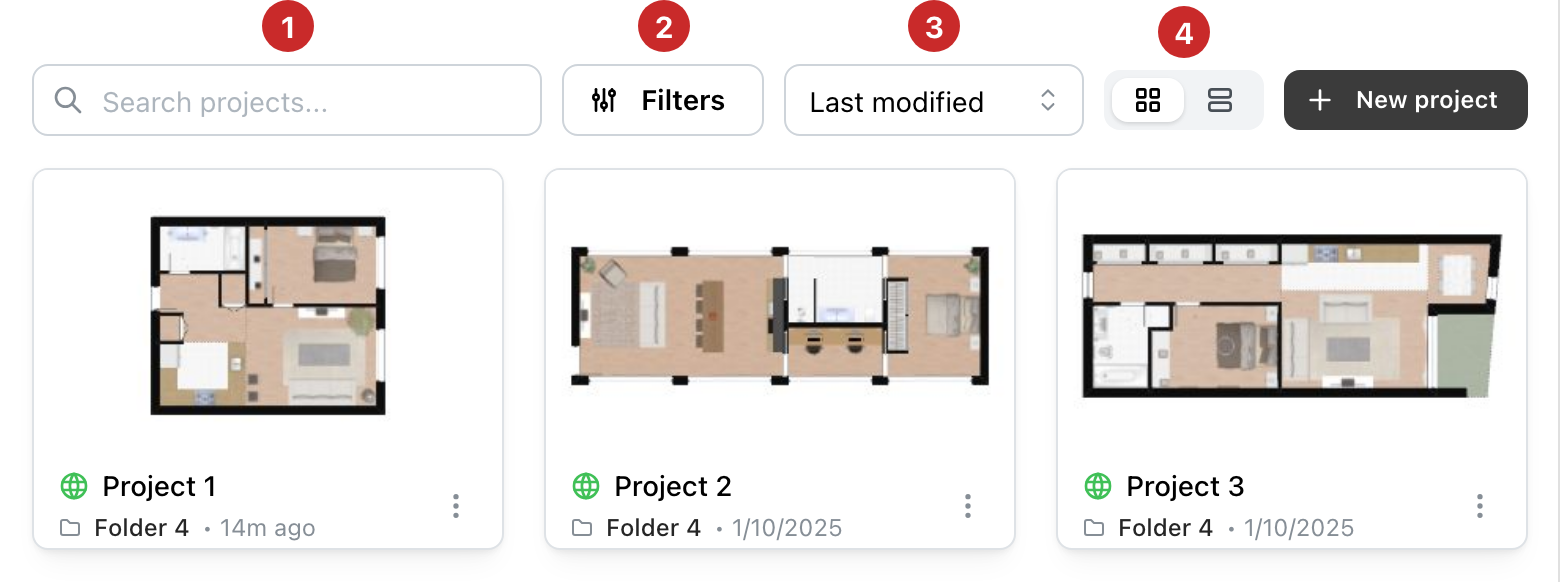
- Search projects... Finds a project by its title, description, labels or group. The list updates as you type.
- Filters. Opens the advanced filters, described below. The number of active filters shows on the button, for example Filters (2).
- Sort. Last modified, Date created or Title (A-Z).
- Cards or table. The two icons show the projects as cards or as rows. The dashboard always opens on cards.
The list loads twenty projects at a time. See more, at the bottom, loads the next ones and says how many remain.
Advanced filters
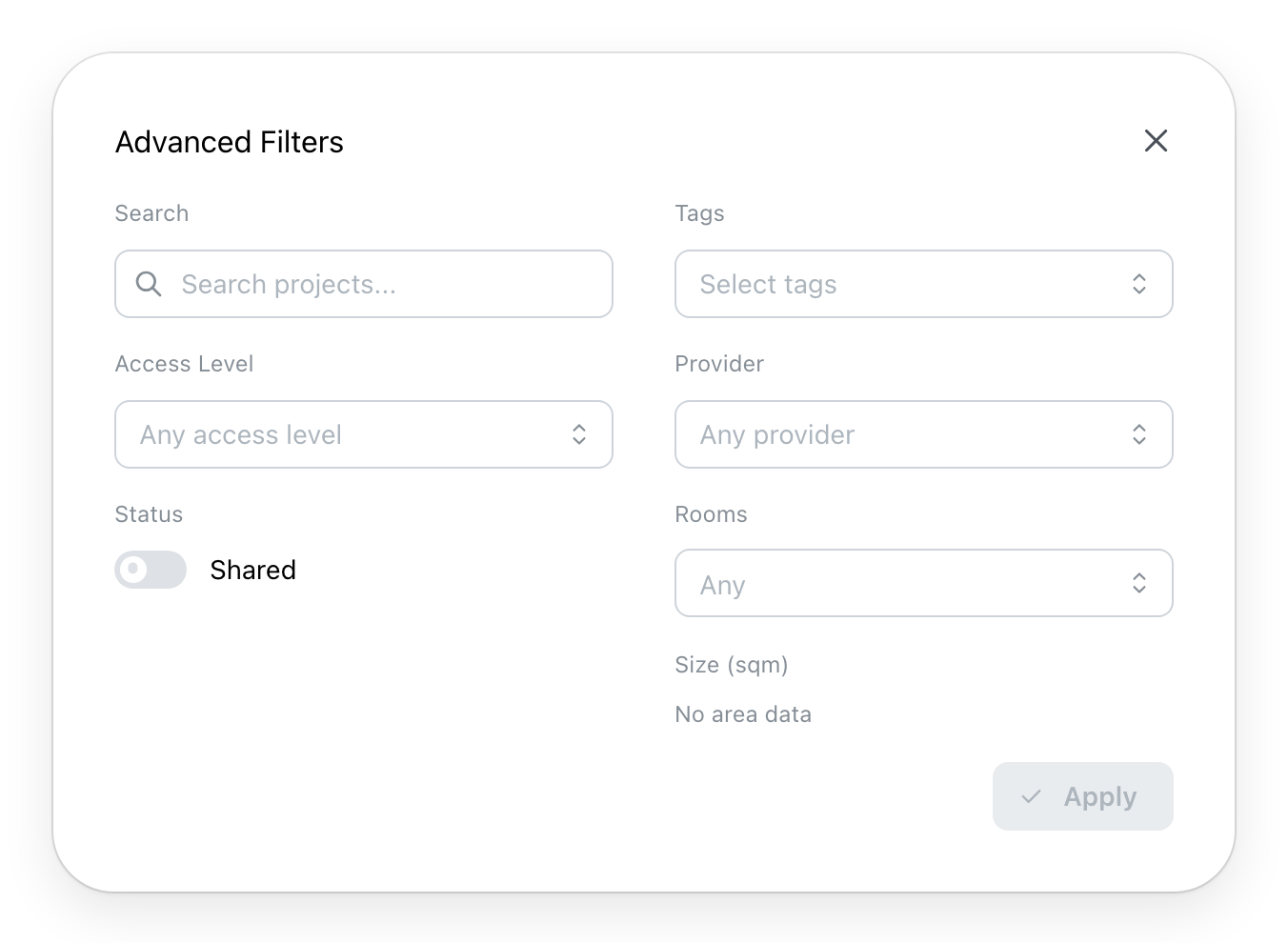
- Search: the same text as the list's search.
- Access Level: one or more visibilities, Private, Unlisted, Team Template or Public.
- Status, Shared: only the projects shared with you.
- Tags: your projects' labels.
- Provider: a project's provider, on the sites that have them.
- Rooms: the number of rooms.
- Size (sqm): a range of area, when your projects have a known area.
Apply filters the list and closes the window. Clear removes every filter.
The table
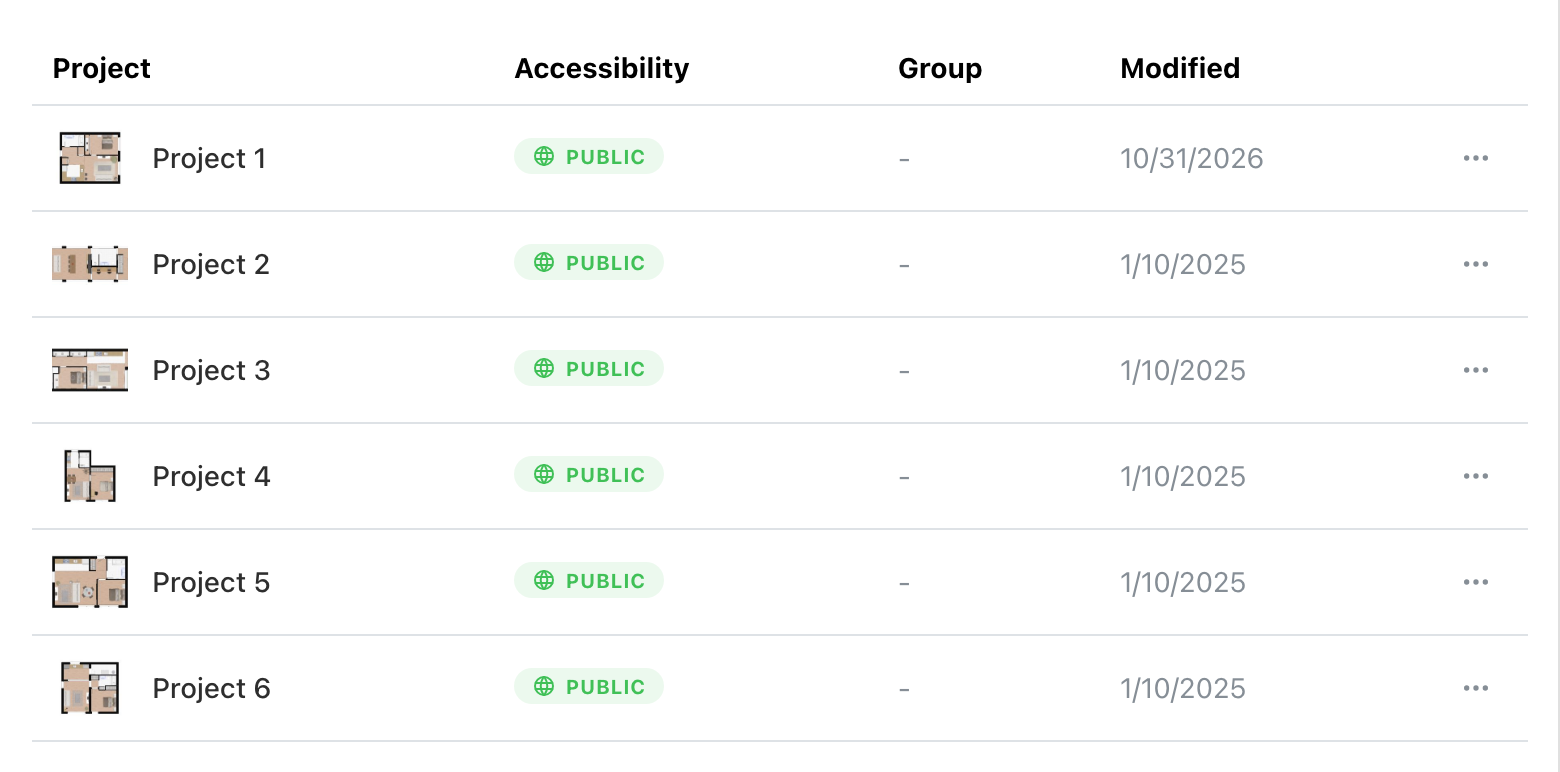
One row per project: its picture and title, its Accessibility, its Group and the date it was modified. The row's three dots open the same menu as the card. A click on the title opens the project in the editor.
When the list is empty
The dashboard says why: no project matches the search, or the filters, or the folder is empty. A button clears the search or the filters, or creates a project.