Folders
The left column of the dashboard holds your projects. At the top, four views the dashboard keeps for you; below, your folders.
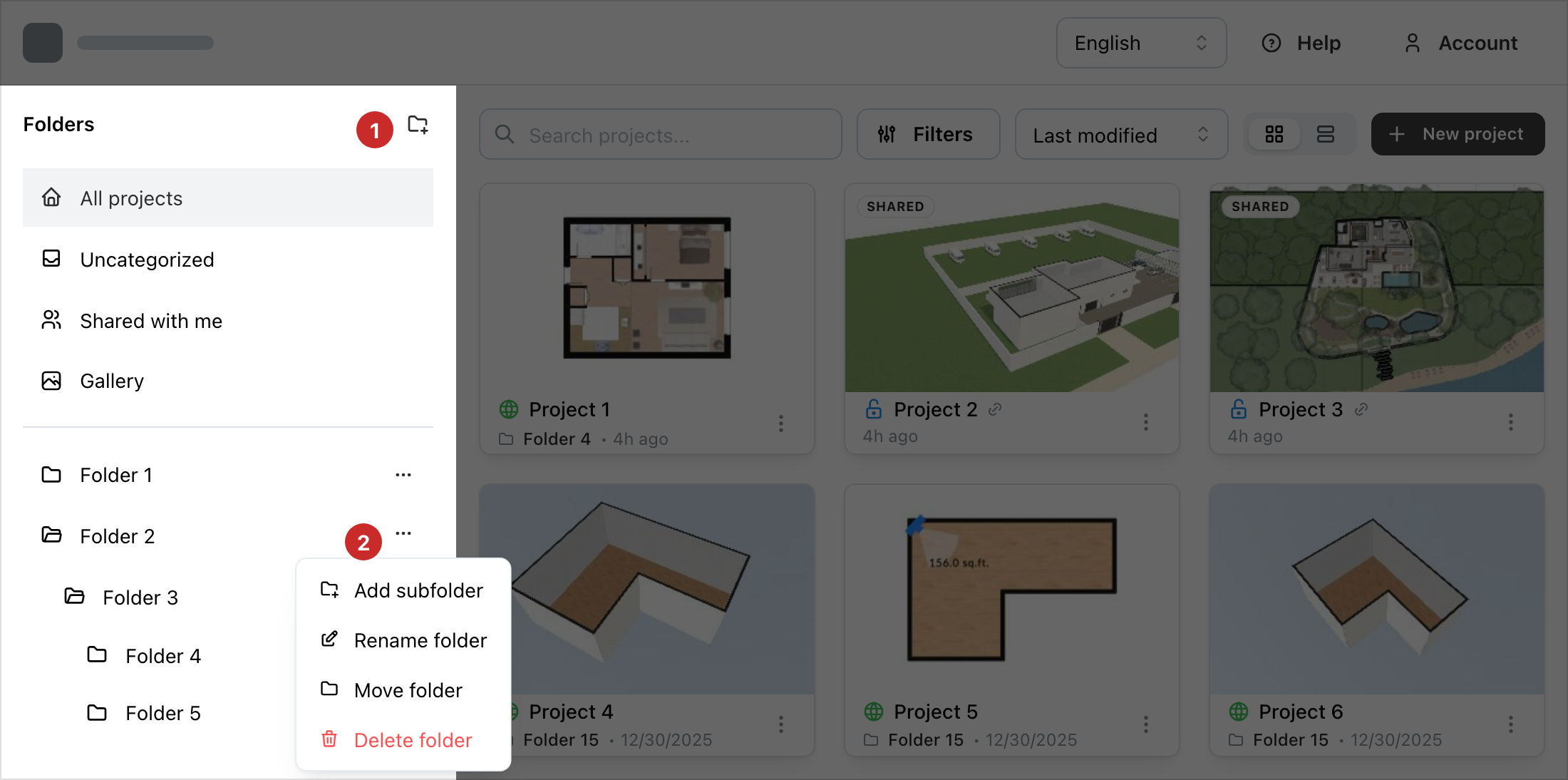
- Create a folder. The + beside Folders.
- A folder's menu. The three dots at the end of its row.
The four views
- All projects shows all your projects: those in folders, those in none, and those shared with you.
- Uncategorized shows your projects that are in no folder.
- Shared with me shows the projects others have shared with you. See Sharing (Page unavailable).
- Gallery shows your public projects, from all your folders. See The gallery (Page unavailable).
Your folders
Your folders are in alphabetical order, and a folder can hold others. A click on a folder's name shows its projects, without those of its subfolders. A click on the icon of a folder that holds others hides or shows its subfolders.
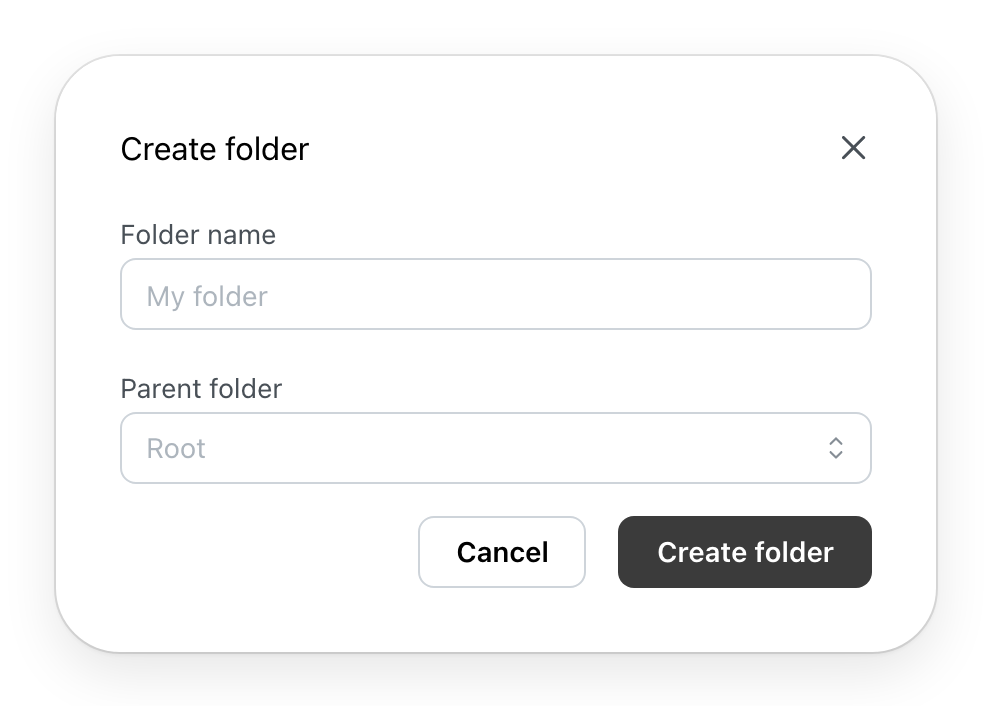
The + opens Create folder: its name, and the Parent folder it goes in. Root puts it at the top level. The parent offered is the folder you are in.
A folder's menu
- Add subfolder creates a folder inside it.
- Rename folder changes its name.
- Move folder puts it in another folder, its New parent, or at the top level with Root. Its subfolders and projects go with it.
- Delete folder, after you confirm, removes the folder. Its projects stay: they move to Uncategorized. Before deleting a folder that holds others, move its subfolders out: they would vanish from the column with it.
Putting a project in a folder
A project's folder is chosen in Project information, from its card's menu (see The project menu (Page unavailable)). No folder puts it back in Uncategorized. When you create a project, Provide more info (optional) offers the folder too.
A project shared with you goes in your folders like your own; its folder counts for you alone.