Sharing
Share, in a project's menu, opens the sharing window. A project is shared in two ways: by its link, to show it, or by an invitation, to work on it together.
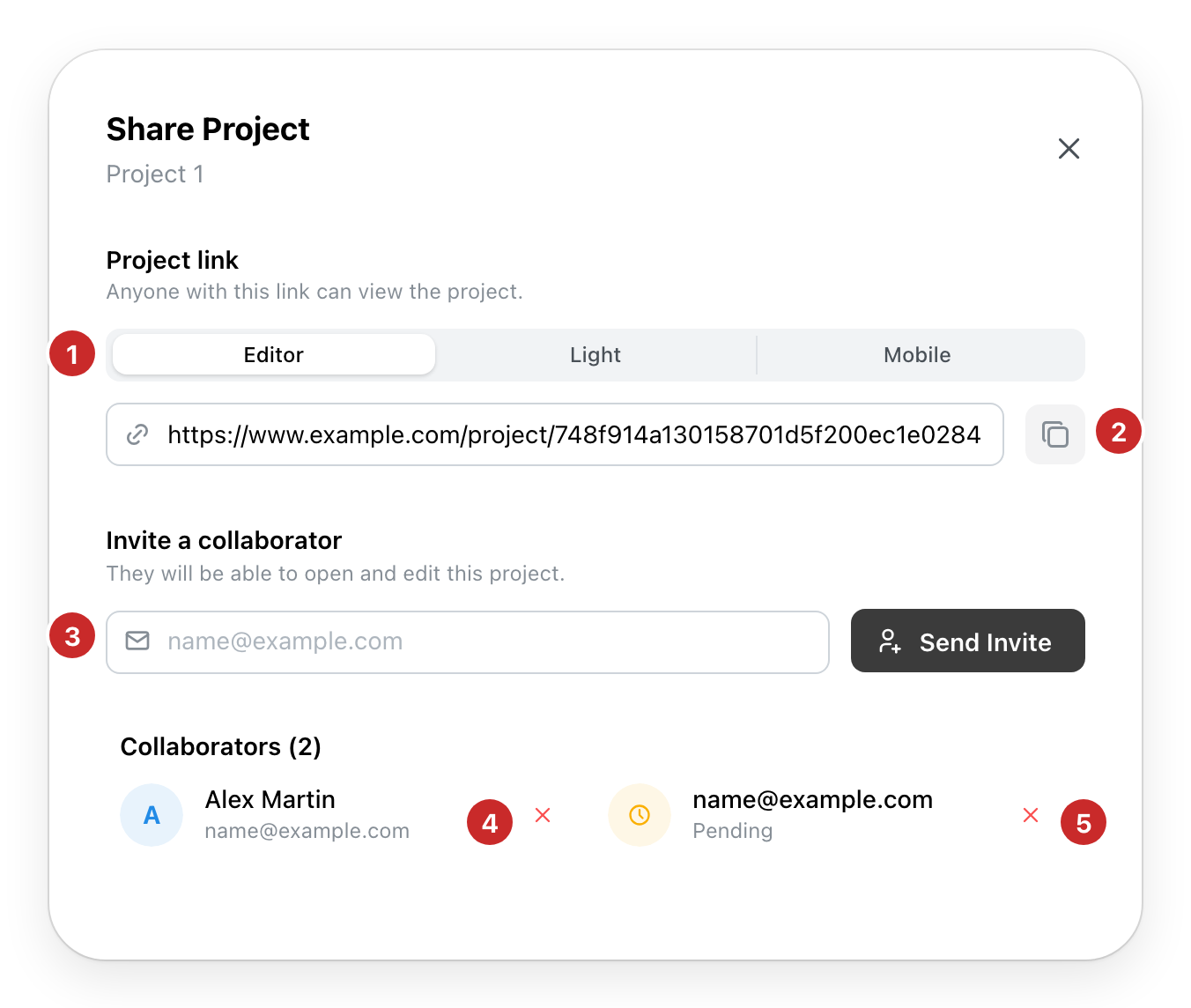
- Editor, Light, Mobile. The link opens the project in the editor, in the light editor (depending on your site), or in the phone view.
- Copy. Copies the link, to paste in a message.
- Invite a collaborator. Their email address, then Send Invite.
- Unshare. Takes back the access given to this collaborator.
- Cancel invite. Removes an invitation not yet accepted.
Unshare and Cancel invite act at once, without confirmation.
The project link
Who opens the link depends on the project's visibility, set in Project information (see The project menu (Page unavailable)). An Unlisted or Public project opens for anyone with the link, even without an account. A Private project opens only for you and your collaborators.
Inviting a collaborator
A collaborator opens and edits the project as you do: their saves go into the same project.
- If the address already has an account, the project appears at once in their Shared with me, and an email tells them.
- Otherwise, the email invites them to create an account with that address. Until they do, the invitation stays in the list, Pending.
In a team, your team's members are offered under Team: a click invites them. The Collaborators list shows who has the project and the invitations pending.
Shared with me
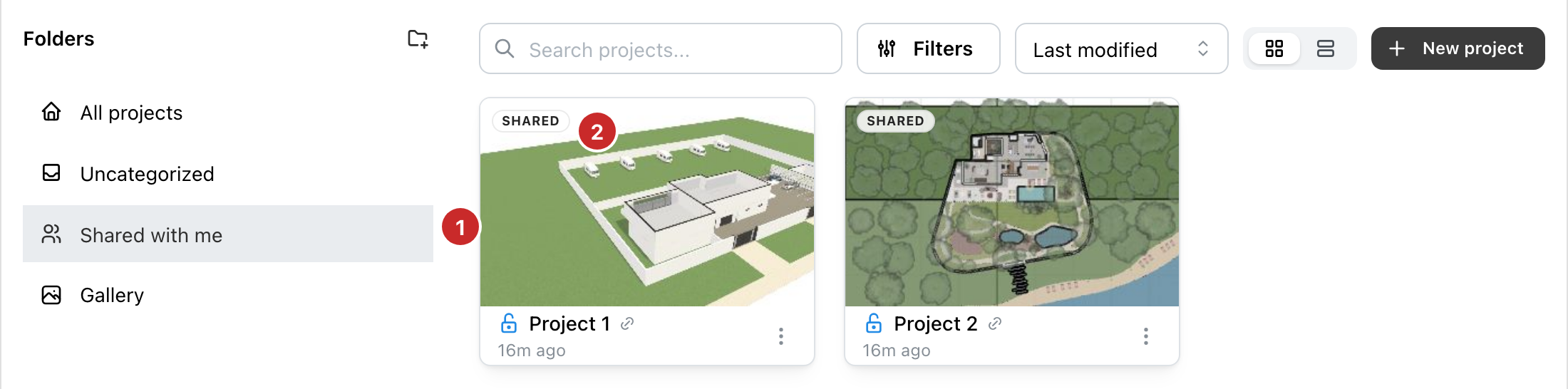
- Shared with me. The view that gathers them, in the left column.
- Shared. The mark of a project shared with you, on its card.
A project shared with you opens and is edited like your own. Its title, description and labels are common to everyone who has it. Its folder and visibility count for you alone. Duplicate makes a copy of your own, independent of it. Delete removes only your copy. A project shared with you cannot be shared on.