Precise Placement
Dragging is quick and it is never exact. When a thing has to sit sixty centimetres from the wall, or a whole run of desks has to shift by one metre, type the distance instead.
One object
Select it and press Move with Precision, in the Actions section of its property panel. The Offset dialog opens.
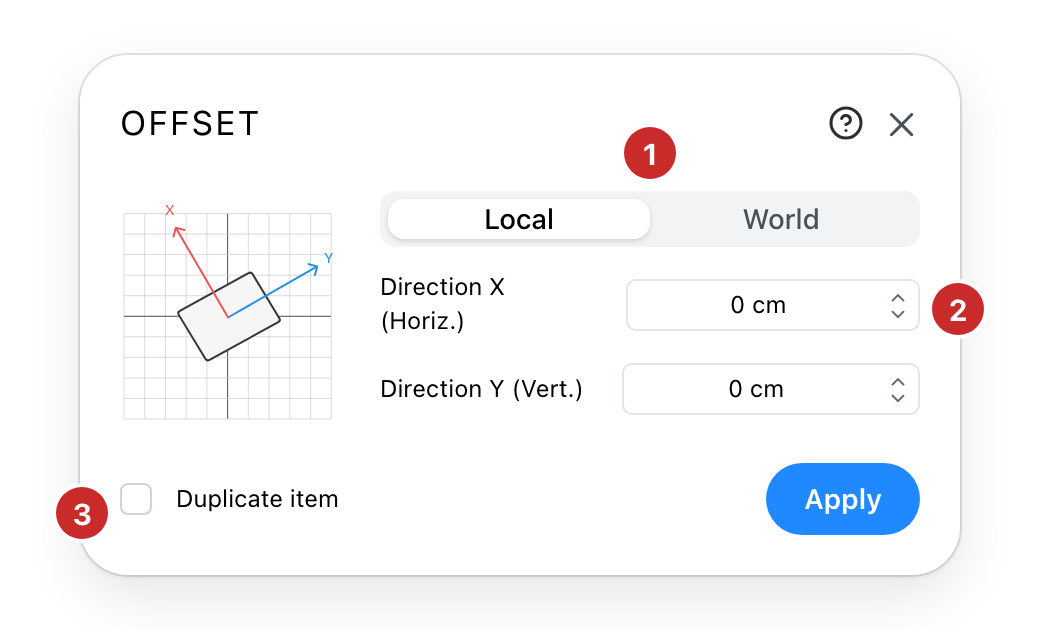
- Local or World. Local measures along the object's own facing, world along the plan's. The diagram beside them redraws to show which, and for anything standing square to the plan the two are the same thing.
- X and Y. How far to go, in the project's units. A negative number goes the other way.
- Duplicate item. Leaves the original where it is and puts a copy at the offset instead. This is how a row of anything is built at an exact spacing: duplicate, then duplicate the copy by the same amount.
A whole selection
Select several objects. The Transform section of the group's panel already moves the selection by the distances typed in ΔX and ΔY, applied with the arrow beside them, and turns it by its Rotation field. Move with Precision, at the foot of that section, opens the Transform dialog: it moves the selection by X and Y like Offset, without the local axes and without the copy, and does two things besides.
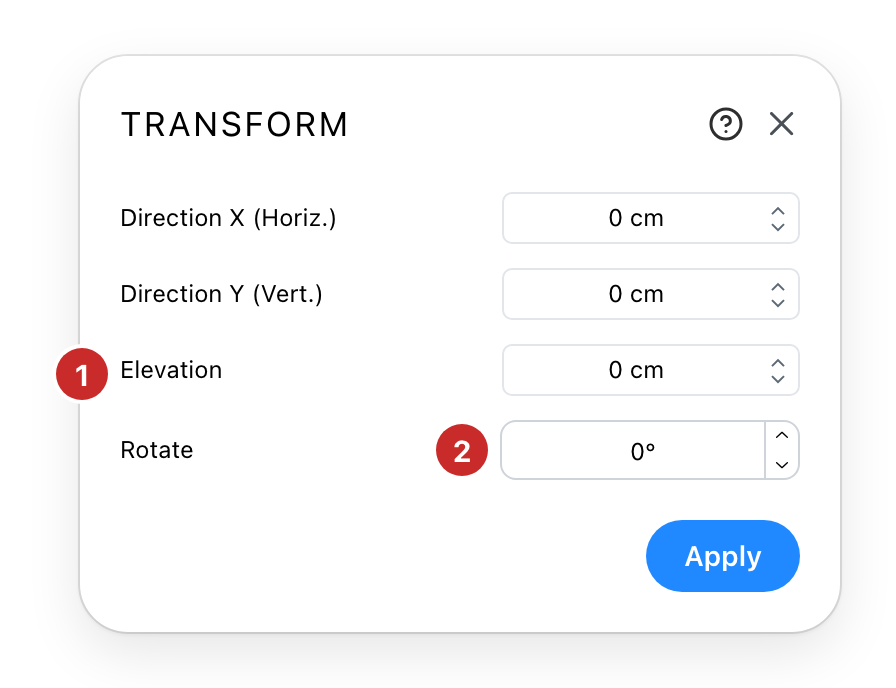
- Elevation. Moves the selection up or down. Where some of what you picked cannot be raised, a warning appears beside the word and those parts stay where they are.
- Rotate. Degrees about the middle of the selection, so everything in it keeps its arrangement relative to everything else. Turning a laid-out office by fifteen degrees does not disturb what is inside it.
Both dialogs apply once, when you press Apply. Nothing moves while you are typing.
See also
- Catalog places the objects these two dialogs then position.
- Drawing Tools has the dimension tools for checking the result.