Similar Objects
Every catalogue object is tagged with the family it belongs to, and this dialog offers you the rest of that family. It is the way to try a different chair without deleting the one you placed, losing where it sat and what it faced.
Select an object, then press Replace with Similar Object, in the Actions section of its property panel.
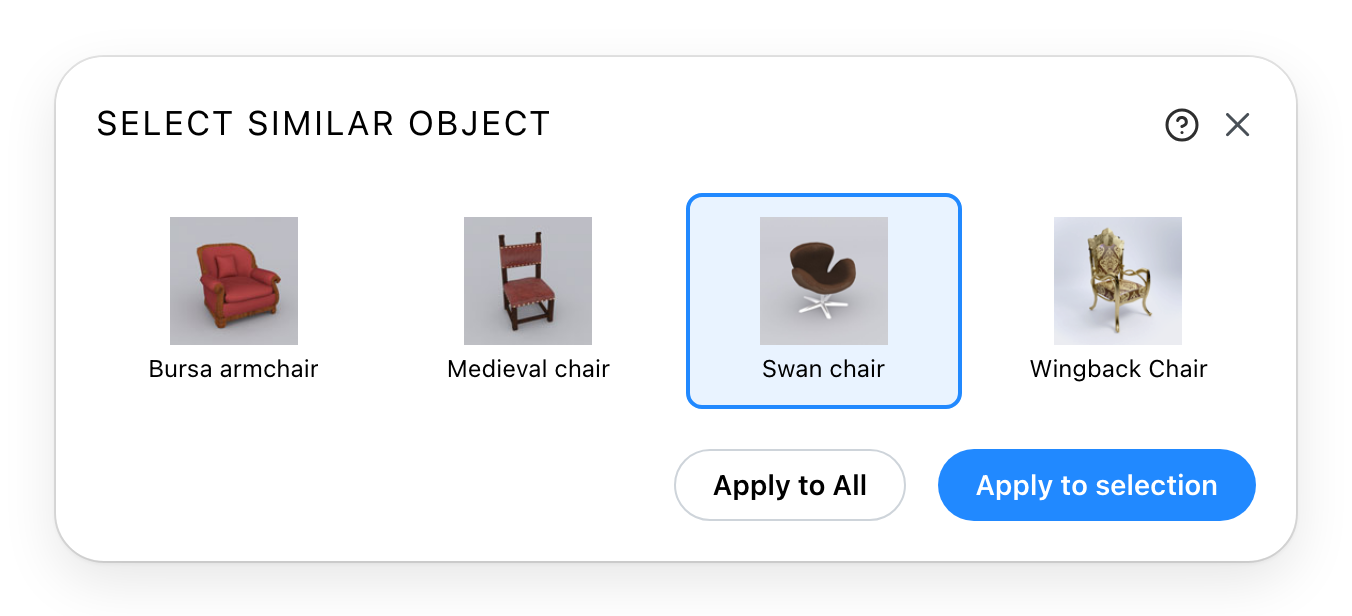
The grid holds every object that can stand in for yours. Click one to choose it; nothing is replaced until you press a button, and both buttons stay greyed until you have.
Apply to selection replaces the object you had selected. Everything else stays as it is.
Apply to All replaces every copy of the original on the level and in the version you are on. It is the one worth knowing: thirty chairs around a hall become thirty other chairs in one press, each keeping its own position and rotation. Copies on other levels stay as they are.
The replacement inherits the place of what it replaces, not its size. An object of different proportions arrives at its own, and with its own colours.
With several objects selected, the same action, in the Actions section of the Properties tab of the group's panel, offers only what can stand in for all of them. It has one button, Apply to selection, and replaces each of them. It stays greyed while one of the objects has no family.
If the object you selected has no family, there is nothing to offer: instead of the dialog, a message says that no alternatives are available for this item.