Configuration
Everything about how this project is measured and drawn, in one panel, sorted by where it shows: the project itself, the 2D view, the 3D views, and how walls behave while you edit. It opens from the sliders tile on the left rail, Adjust the application settings; when the rail is too short for all its tiles, that one waits in its « … » menu.
Type in the field at the top to find a setting by name; the sections holding a match open and the others are hidden. The section of the view you are in opens by itself. On a first visit Project is open as well, and the panel then remembers the sections you leave open.
Project
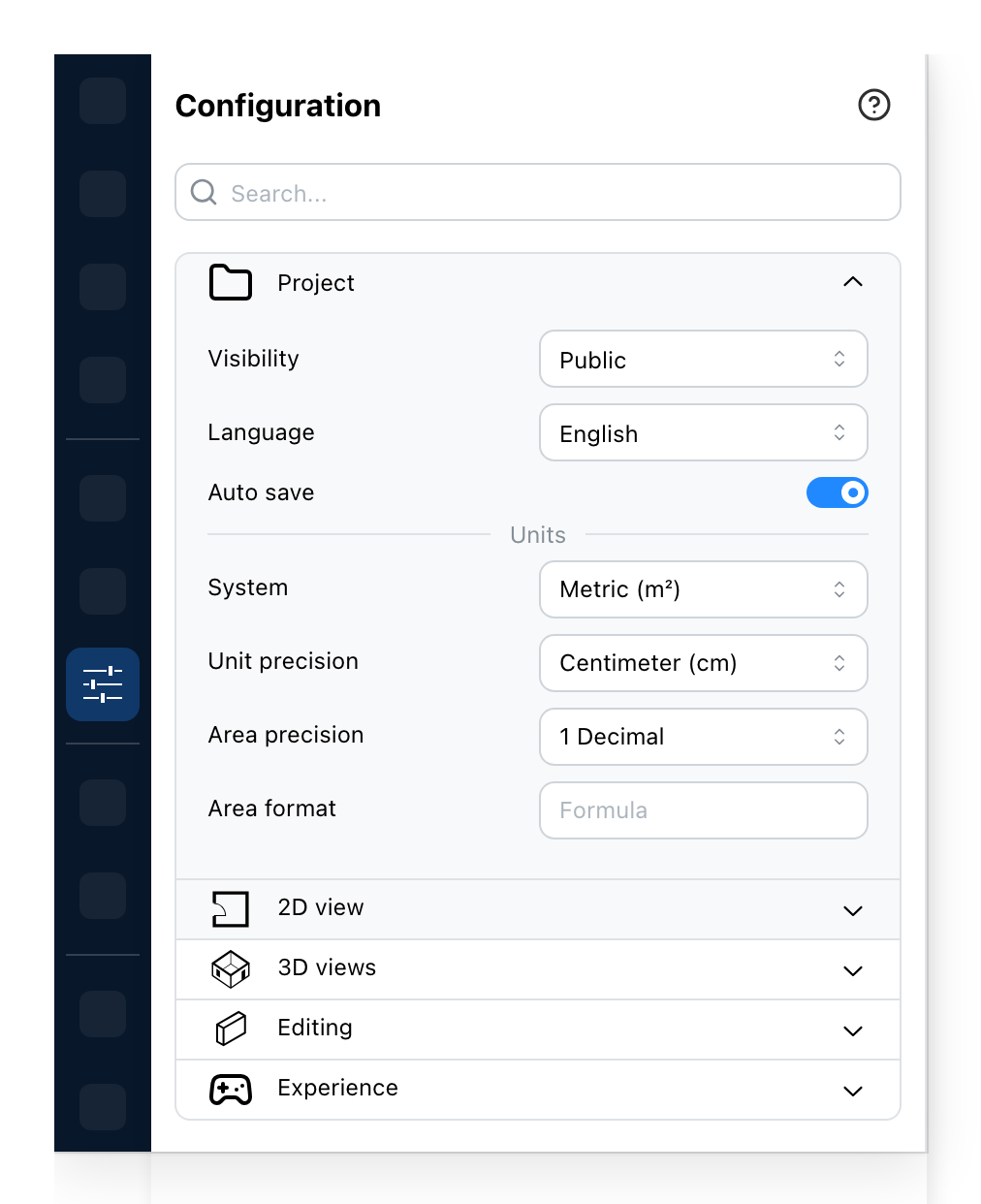
- Who can open the project. Private is you and the people you shared it with, public is everyone, unlisted is anyone with the link.
- Reloads the editor in the language you pick. The project itself is not translated.
- Saves the project by itself as you work.
- Metric or imperial, for every length and area the editor writes.
- How finely a length is written: to the millimetre, the centimetre or the metre, or in feet and inches with the decimals you want.
- How many decimals an area carries.
- A formula for how areas are written on the plan. Leave it empty for the plain value.
The first and the third row are yours to set on a project you own and are signed in to, and auto save only on sites that offer it. The language row is there when your site offers more than one language.
1 Who can open the project
Private. The link works for you and for the people you shared the project with. Anyone else who follows it is told the project is not theirs to see.
Unlisted. The link works for anyone who has it, and the project is listed nowhere. Send it to a client, a colleague, a supplier: they open it, and they can make a copy of their own to work on. Your project stays yours; the copy is theirs.
Public. Everything unlisted allows, and the project is listed as well: sites that have a gallery show it there, and searches find it.
A shared copy of someone else's project takes its visibility from the original, so the row is not offered on one.
3 When auto save saves
Every two minutes, and every five on a project of more than a thousand objects. It saves only when there is something to save and only while the editor is the tab in front, so a project left open in the background is not written over and over.
Switched off, nothing is written until you save yourself, and the editor asks before you leave the page whether to keep what changed. The row is offered on a project you own, signed in.
5 How a length is written
The unit precision is the shape every length takes on the plan and in the panels. The same length, 2.347 m, under each choice:
| Precision | Written |
|---|---|
| Millimeter (mm) | 2347 mm |
| Centimeter (cm) | 235 cm |
| Meter (m) | 2.35 m |
| Feet and inches (no decimal) | 7' 8" |
| Feet and inches (1 decimal) | 7' 8.4" |
| Feet and inches (2 decimals) | 7' 8.4" |
| Feet only | 8' |
| Inches only | 92" |
Metres always carry two decimals; millimetres and centimetres carry none. In feet and inches, a decimal that ends in zero is dropped. In metric, a number typed without a unit is read in that same unit: 250 means 250 cm under centimetres, and 2.5 means 2.5 m under metres.
Switching the system picks that system's usual precision, centimetres or feet and inches, and you change it from there.
6 7 How an area is written
The area precision is the number of decimals: 18 m², 18.7 m² or 18.72 m², and the same in square feet.
The area format goes further. It is a piece of text the editor writes in place of the plain
value, everywhere it writes an area in square metres: on the rooms, in the area tables, in
the reports. The text is copied as you wrote it, except that whatever stands between braces is
worked out first, with area standing for the area in square metres. Add, subtract,
multiply, divide, use brackets. The result takes the area precision's decimals.
For a room of 18.7 m², at one decimal:
| Formula | Written |
|---|---|
| (empty) | 18.7 m² |
{area} m² |
18.7 m² |
{area * 10.764} sq ft |
201.3 sq ft |
{area} m² · {area * 10.764} sq ft |
18.7 m² · 201.3 sq ft |
{area / 3.306} tsubo |
5.7 tsubo |
{area * 0.9} m² net |
16.8 m² net |
Area: {area} |
Area: 18.7 |
{surface} m² |
[Syntax error] m² |
Three things to know. The unit is not added for you: write it in the formula, or the number stands alone. The area is rounded to the area precision before the formula runs, so a conversion at zero decimals is coarse; give the project two decimals if the converted figure is the one that matters. And the formula is metric only: under the imperial system every area is written in square feet, whatever the formula says.
2D view
What the plan shows, then how it draws it.
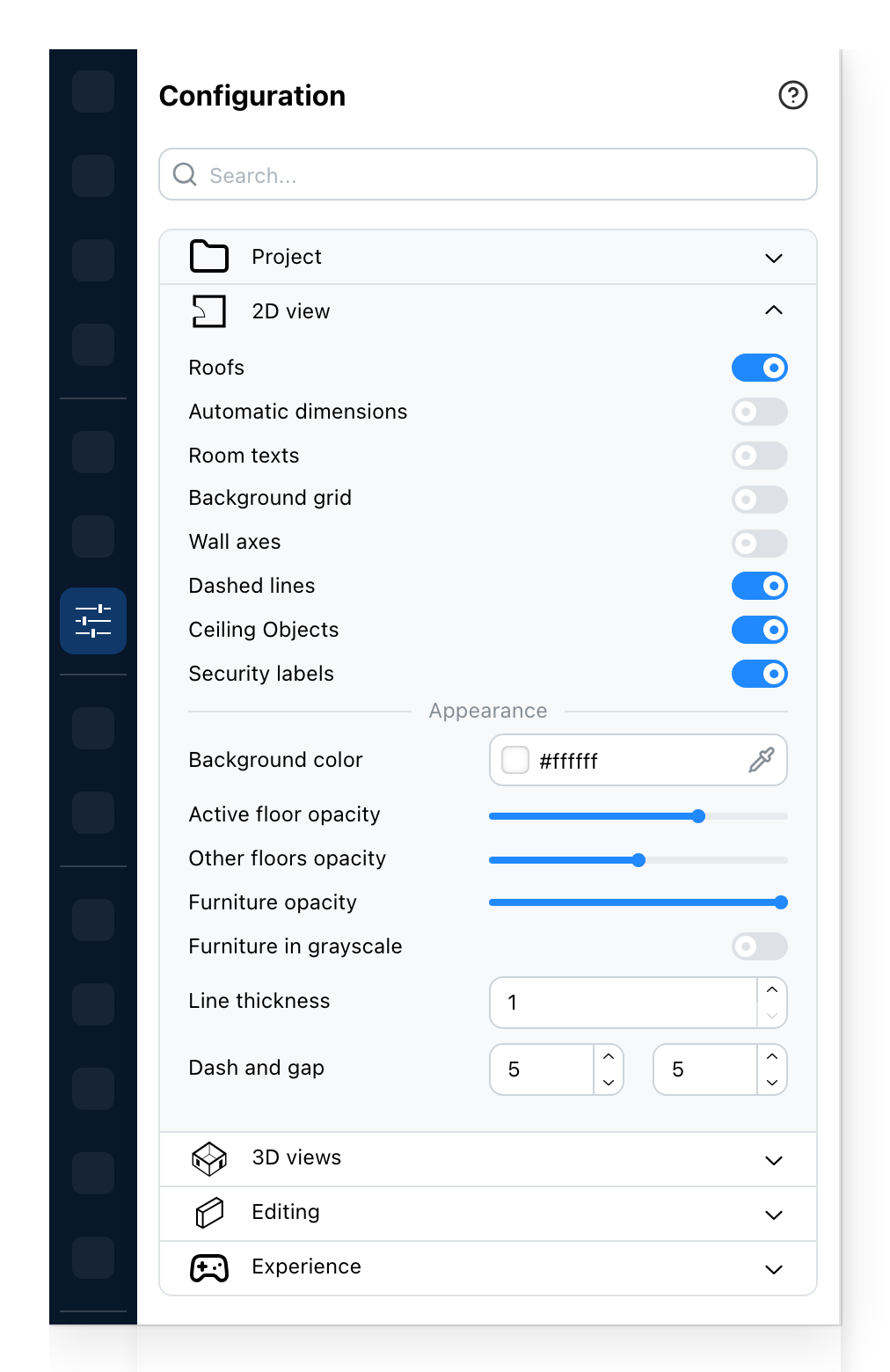
- Draws the roofs on the plan. Off, you see the floor under them.
- Measures every room's sides and writes them along the walls.
- The name and area of each room, written on the room.
- The grid behind the plan.
- A line along the middle of every wall, the line the wall was drawn from.
- Open walls, drawn as a line where they stand. Off, the plan does not draw them.
- Objects made to hang from the ceiling. Off, they are hidden on the plan and in 3D.
- The security volumes of the objects, drawn on the plan. On sites that use them.
- What the plan is drawn on. The papers and greys offered are made for black linework; any other colour is a click away.
- How solid the floor of the level you are on is drawn.
- How solid the levels shown beneath it are drawn.
- How solid the furniture is drawn.
- Draws every object in grey, so the plan reads as a plan and not as a catalogue.
- The weight of every line on the plan.
- The length of a dash, and of the gap after it, for the dashed lines.
The roofs and the security volumes switches are not saved with the project: both go back to how they were when the editor opens again.
3D views
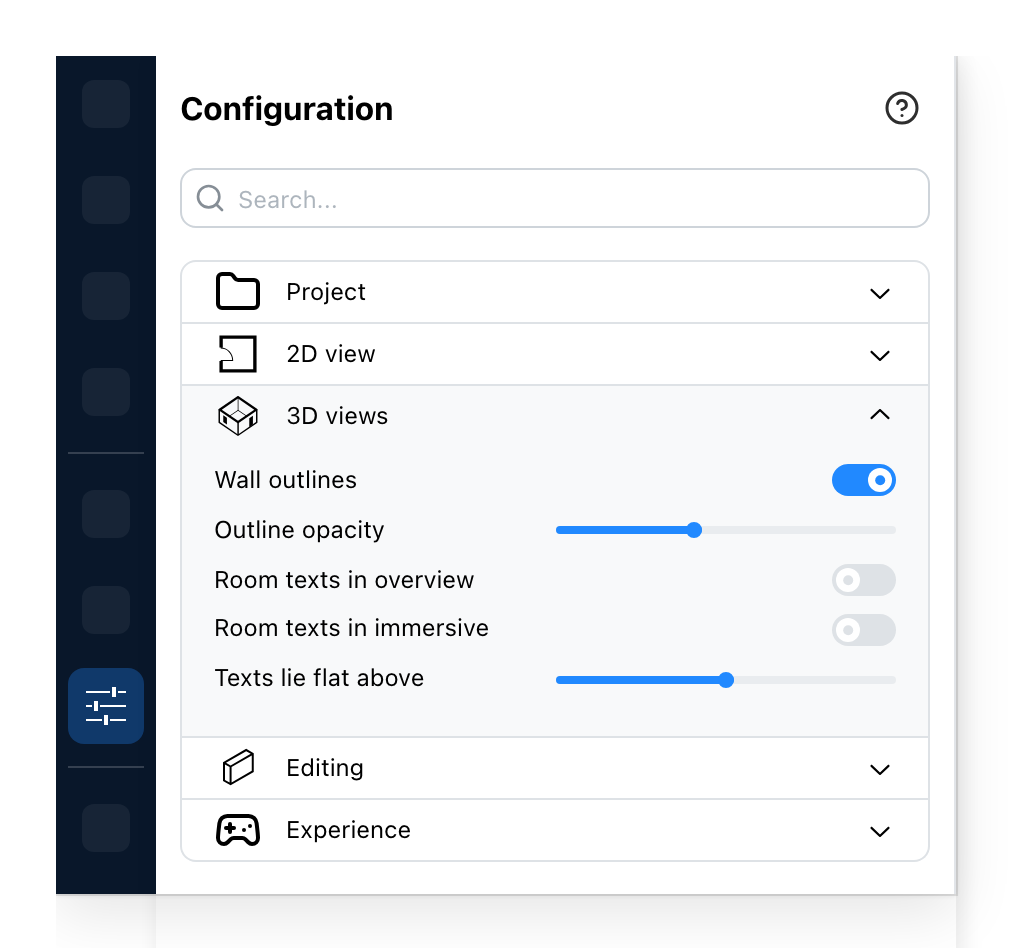
- Draws the edges of the walls in the 3D views.
- How dark those edges are.
- The name and area of each room, in the 3D overview.
- The same texts, in the immersive view.
- The camera height above which the room texts lie flat over the rooms of the overview. Below it, each room shows a marker instead.
5 Where the room texts stand
A room text has two ways of being shown in 3D. Seen from high up, it lies flat over the room, as it does on the plan. Seen from lower down, the room shows a marker instead: a dot on a short stem, which fades when a wall comes between you and it. Point at the dot and the text appears.
The last slider is the camera height where one becomes the other, in the project's units. Raise it and the markers stay longer as you climb; lower it and the flat texts come sooner. The immersive view walks at eye level, so it always shows the markers.
Editing
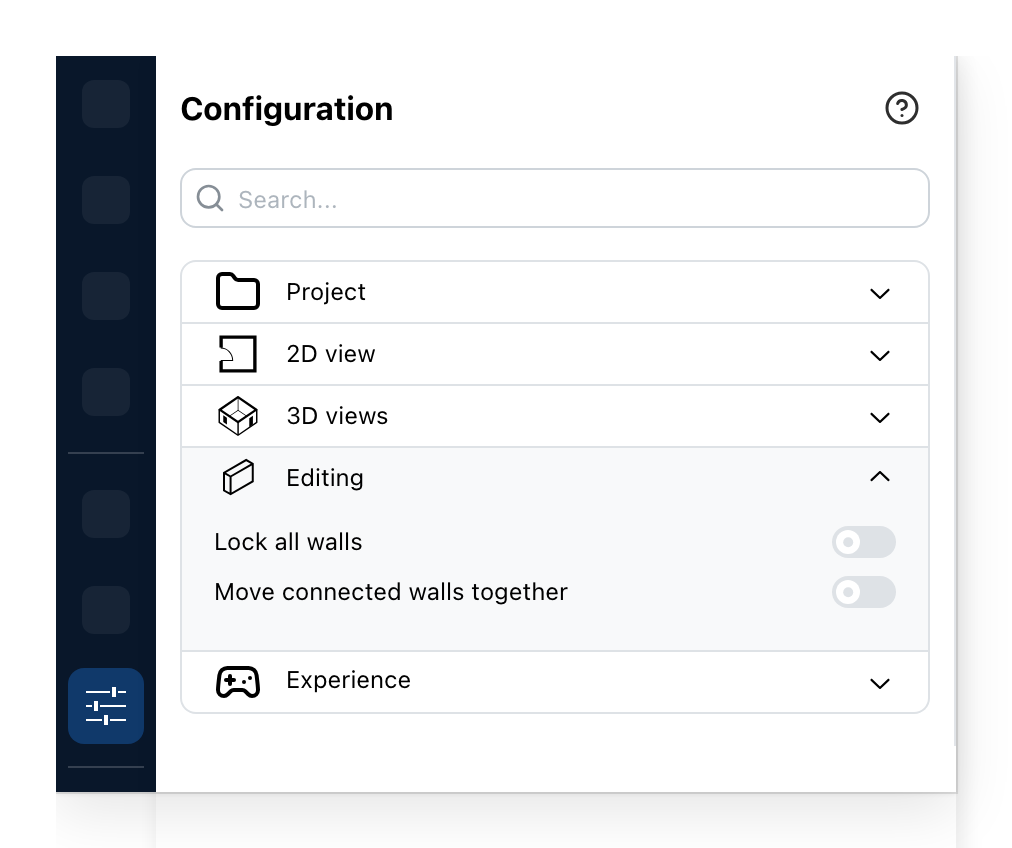
- No wall can be selected or moved while this is on. For a plan that is finished when the furnishing is not.
- Dragging a wall takes the walls joined to it along, and the corners stay closed.
1 2 Dragging walls
With Move connected walls together on, a wall dragged sideways pulls the walls joined to it
along, so a room stays a room. Hold Ctrl as you start dragging a selected wall to move it
without them for this drag: its neighbours stretch or shrink to stay joined. With the setting
off, Ctrl does the opposite and takes them along. Add Shift to detach the wall from its
neighbours as it moves; with the setting off, Shift alone is enough.
Locking the walls takes them out of selection altogether: nothing can move, resize or delete one until it is switched off. Furniture, texts and everything else stay as they were.
Some sites get a fifth section, Experience, with two switches: whether the clickable events and the walkable events are drawn.
See also
- Levels for the storeys the opacity settings apply to.
- Environment for what lights the 3D views.
- Label Style for how the room texts look, once they are shown.
- Security Volumes for the clearances the plan can draw.