Environment
The environment is the world the project sits in: where on earth it stands, what time it is there, what sky is wrapped around it and what is laid over the finished image. It decides almost everything about how a render looks, and none of it changes the building.
The map pin tile of the rail, "Set the geographic location and the position of the sun", opens the Environment panel, in three tabs: Time & Location, Sky & Sun and Effects.
Time and location
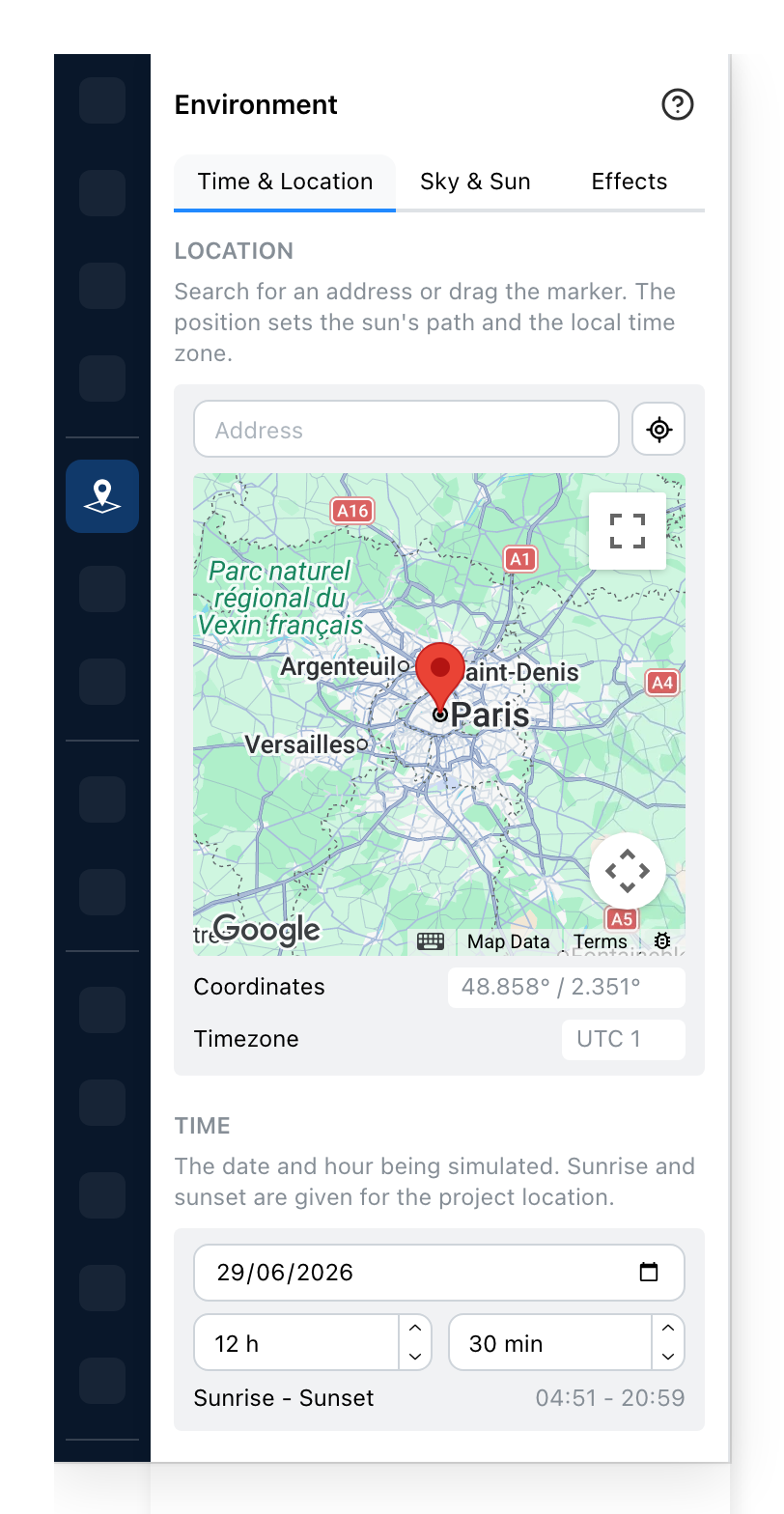
- Double-click anywhere on the map to move the marker, or search above it. Everything under it follows from where the marker lands. On a site without the Google map, a world map takes its place: click it to put the marker down.
- Read from the marker rather than typed; click one to copy it. The zone is what makes the hour below mean a real hour on site.
- The moment being simulated, not today. Sun angle is a date and an hour, so a winter afternoon and a summer morning light the same building quite differently.
- Worked out for the place and the day. Use it to pick an hour that will actually show the facade you care about.
Sky and sun
The sky has three sliders, and not one of them does quite what its name suggests. This is the part worth reading twice.
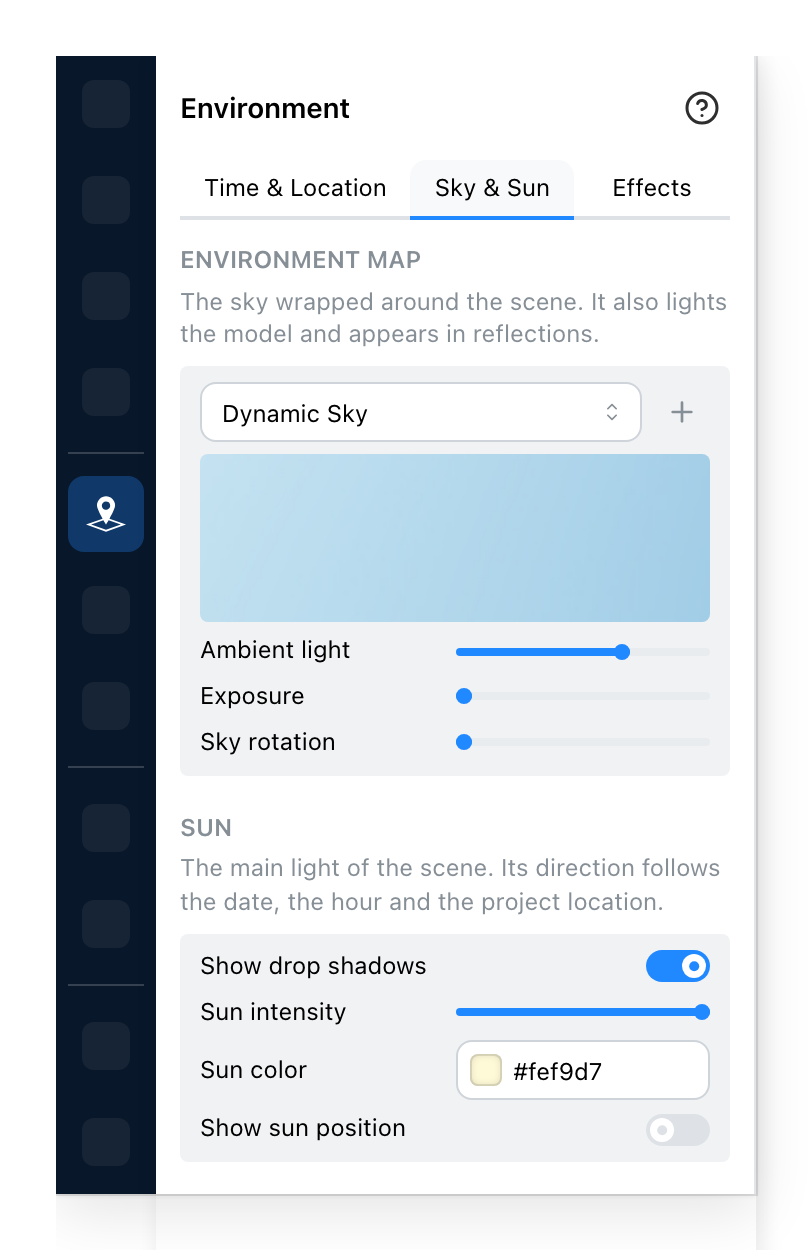
- The image wrapped around the project. It is not only a backdrop: it lights the model and it is what shows in every reflective surface. The + beside the list adds your own image (PNG, JPG, HDR or EXR, up to 6 MB: a bigger file is refused with a message), and the bin then removes it.
- How strongly that wrapped image lights the scene. Turn it down and the model goes flat and grey, whatever the sun is doing.
- A flat lift applied to everything, shadows included. It is the control for a model that reads too dark, and the one to leave alone if the shadows still have depth you want.
- Turns the wrapped image around the project. It moves the reflections and what is seen through the windows, and it does not move the sun.
- Off, the model keeps its light and loses the shapes cast on the floor, and the sun stops following the date and the place: it stands overhead, at a quarter of its strength. Worth switching off for a plan-like image and on for anything meant to look photographed.
- How strong the sunlight is.
- The colour of the sunlight, for a warm evening or a cold winter noon.
- Draws where the sun is in the sky, which is how you check the date and hour are giving you the light you asked for. Only while the shadows are on.
With the shadows on, the sun is placed by the date, the hour and the marker on the map. There is no control for its direction because there does not need to be one: move the project or move the clock.
Effects
These sit on top of the picture rather than inside the scene. Nothing here changes how the model is lit; it changes how the image reads.
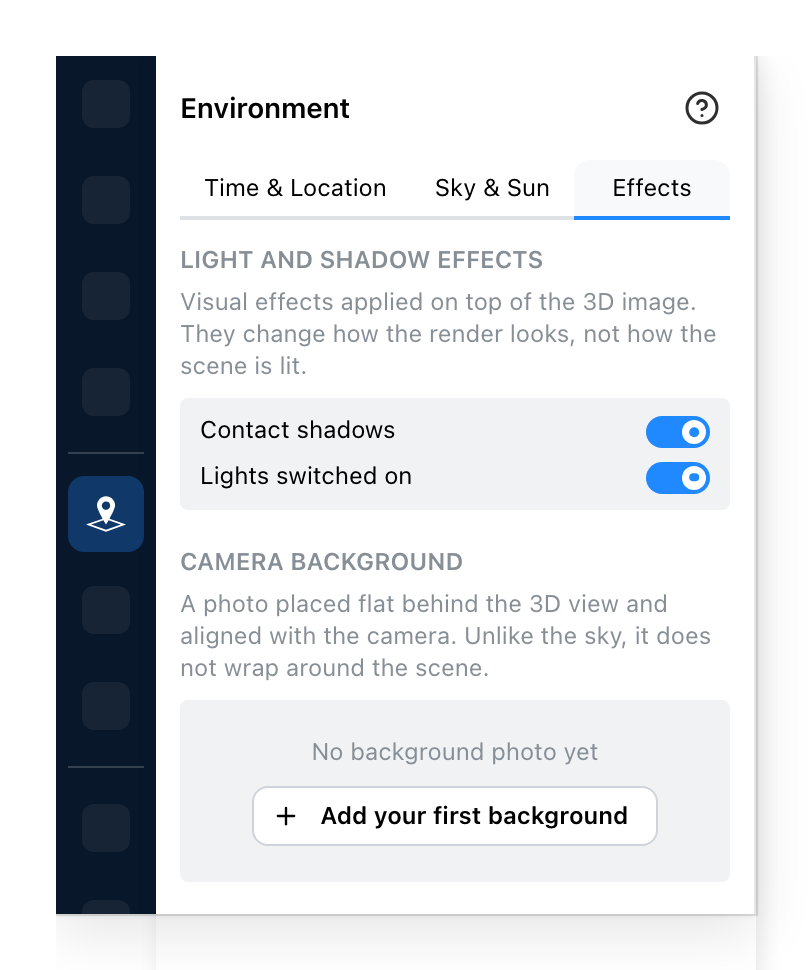
- A dark seam where an object meets the floor. It costs nothing and it is what stops furniture looking like it hovers.
- Makes the lamps in the project glow. It is about the fittings you placed, not about the daylight above.
- A photograph pinned flat behind the view and lined up with the camera. It does not wrap around the project, so it does not light it and it does not appear in reflections. Add your first background puts one in, with the same files and limit as the sky; once you have added one, its scale, opacity, saturation and exposure are set here.
The first two are there only on sites that offer them, and they do not work on a phone or a tablet.
That last distinction is the one people trip on. A sky lights the model; a background does not. For a building photographed onto a real plot you generally want both: the plot behind, a sky doing the lighting.
See also
- Levels and Drawing Tools build what the light falls on.
- Materials decide what the sky is reflected in.