Custom Volumes
A custom volume is any outline raised to a height: a column, a plinth, a stage, a bulkhead. Draw it with Custom Volume, item 12 of the Drawing Tools, under Architectural Elements in the drawing tools menu of the control bar: click each corner on the plan and double-click to finish. Click it on the plan and its panel opens, under the name Custom Volume. It holds its name, its size and how high it sits, how the plan draws it once raised, its two materials, and the side you clicked.
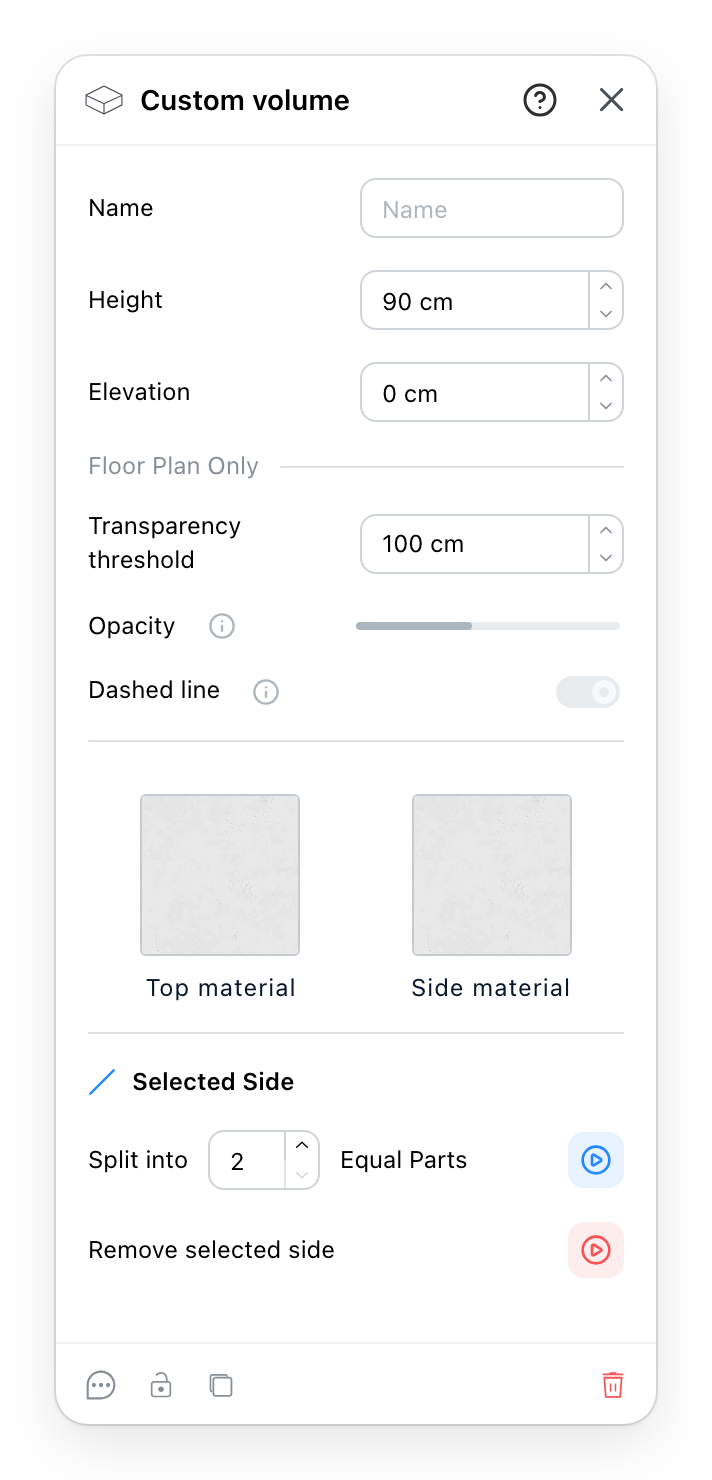
- Name: a name of your own for the volume.
- Height: how thick the volume is, from its underside to its top. A new volume is 90 cm.
- Elevation: how high its underside sits above the floor. A new volume stands on the floor; raise it for a shelf, a bulkhead or a mezzanine.
- Floor Plan Only: the three rows under it change the plan, never the 3D. Transparency threshold is the elevation from which the plan draws the volume as raised.
- Opacity: how solid a raised volume looks on the plan, from 0 to 100 %.
- Dashed line draws the outline of a raised volume dashed.
- Top material and Side material: the top of the volume and its sides. A swatch opens the Materials.
- Selected Side: Split into a number of Equal Parts cuts the side you last clicked on the plan, from 2 to 9 parts, which adds corners to it. The row is greyed until you click a side.
- Remove selected side takes that side out: its two ends become one corner. A volume keeps at least three sides, so a triangle cannot lose one.
- A comment, a lock, a duplicate and a delete, and the
?in the header opens this page.
4 Raised volumes on the plan
A volume above the floor, a bulkhead or a mezzanine, would hide on the plan what stands under it. Once its Elevation reaches the Transparency threshold, 100 cm on a new volume, the plan draws it as raised: Opacity lowers it to let what is under it show, and Dashed line, on by default, dashes its outline. A click on a raised volume reaches what is under it; the mark at its centre selects it.
Below the threshold, Opacity and Dashed line stay in place but greyed, and the info mark beside them says: Applies once the elevation reaches the transparency threshold. The 3D ignores these three rows.
8 Reshaping the volume
The corners of a volume are dragged on the plan. To give a side a notch or a bend, it needs more points than its two ends:
- Click the side on the plan. The mark beside Selected Side lights up.
- Set how many Equal Parts, and press the round button at the end of the row. The new corners sit at equal spacing along that side.
- Drag the new corners on the plan to where you want them.
Remove selected side does the opposite, for a side you no longer need. Its button is red, because it takes something away.
See also
- Drawing Tools is where the volume is drawn.
- Materials is the dialog the swatches open.
- Floor Openings split their sides the same way.