The project's information
After the method, the window asks for what describes the project. The steps are listed on the left; Next goes to the following one, Back returns, and the last one ends with Create Project.
Info
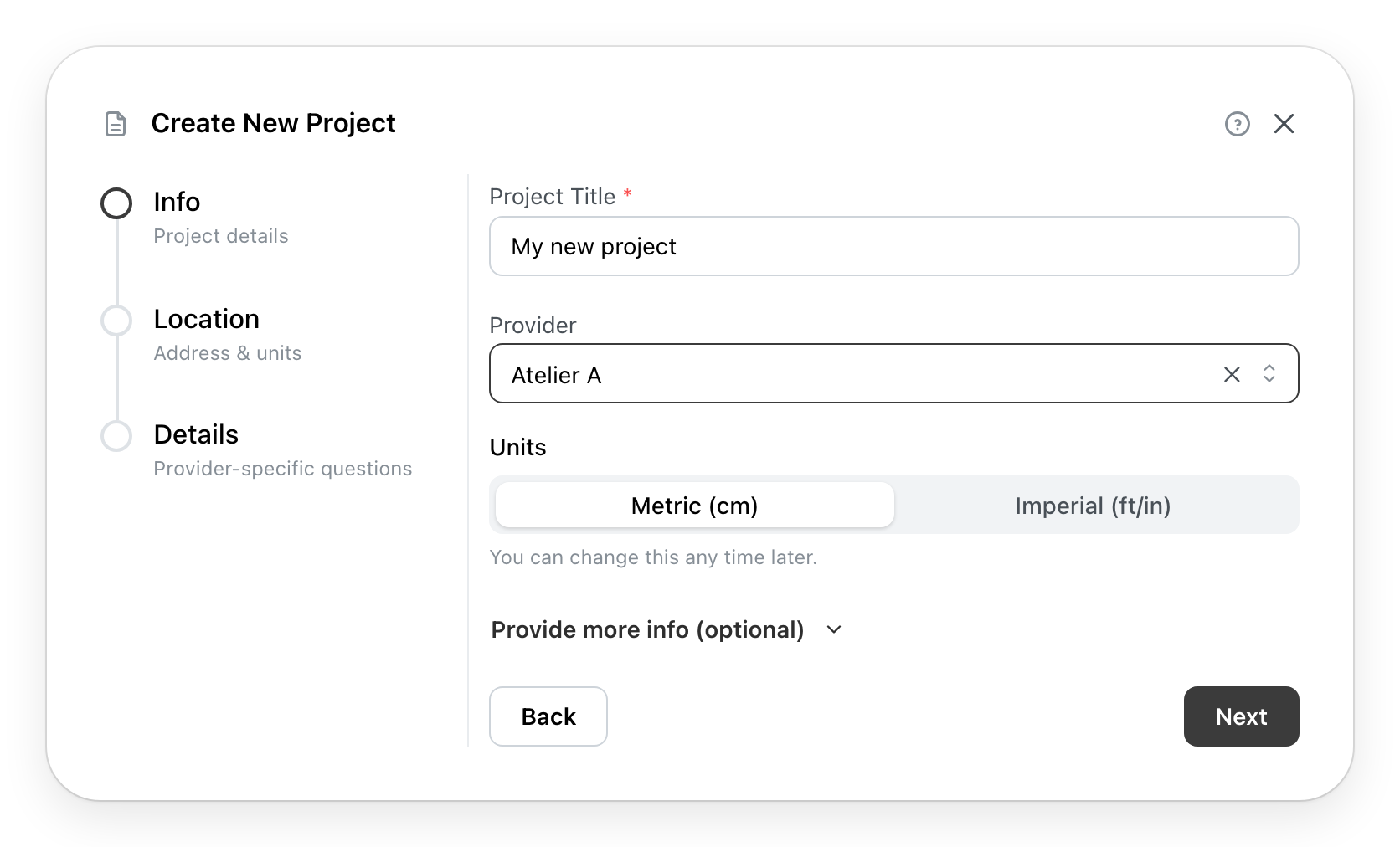
- Project Title is the project's name on the dashboard. It is required.
- Provider, depending on your site, chooses the project's provider. Your site may make it required. A layout that belongs to a provider has already chosen it.
- Units chooses the metric or the imperial system. An imported file keeps its own.
- Provide more info (optional) opens the rest:
- Folder puts the project in a folder; without one, it goes to Uncategorized.
- Description and Keywords help you find it again. A keyword is added with Enter.
- Group, depending on your site, gathers projects together.
- Visibility says who sees the project: Unlisted, anyone who has its link; Public, everyone, and it appears in your gallery; Private, only you. A team leader also has Template, which offers it to the team in Team Templates (Page unavailable).
All of it can be changed later in Project information, from the project menu (Page unavailable).
Location
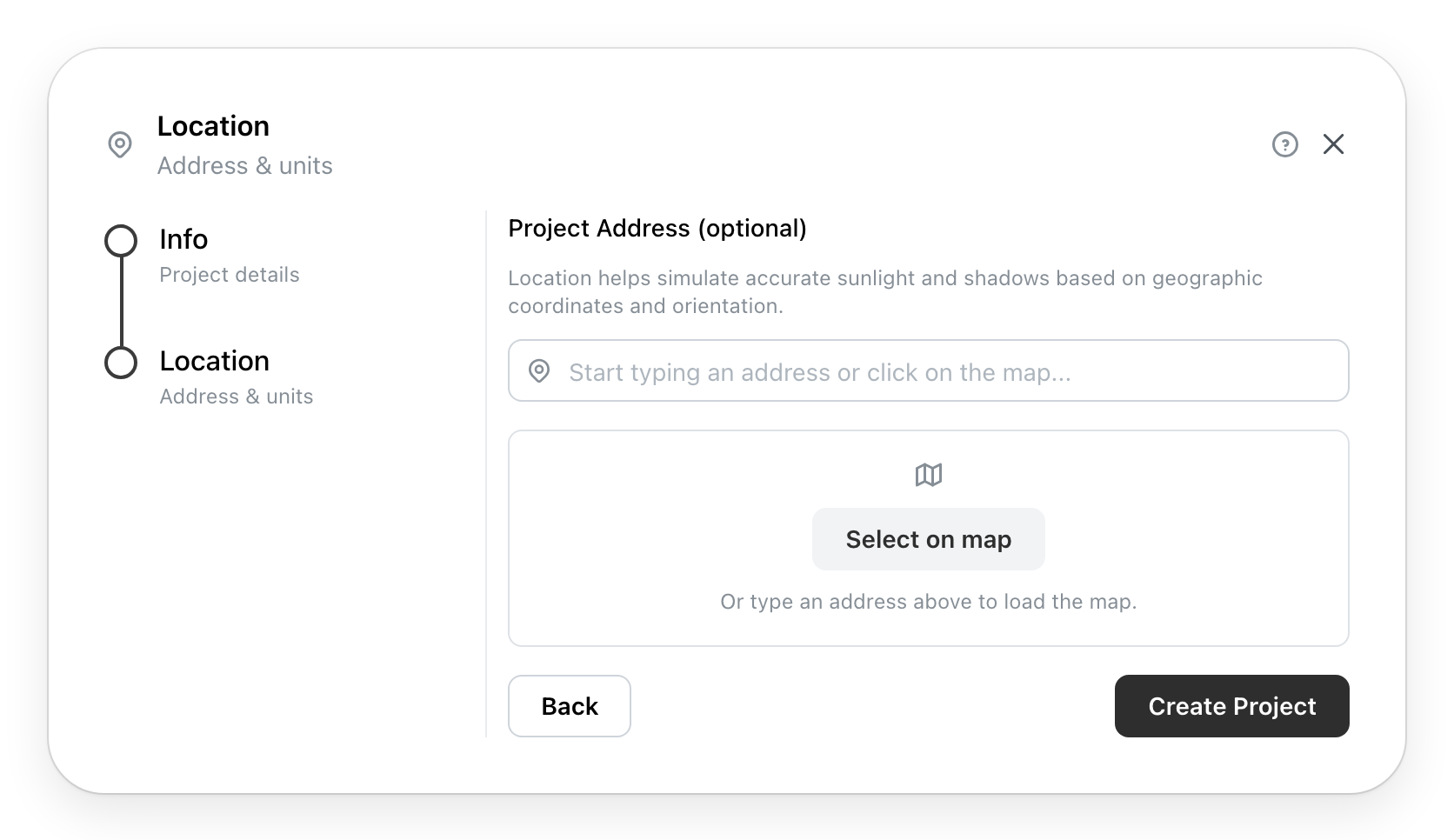
The address is optional. It is used to simulate sunlight and shadows. Type it and choose one of the suggested addresses, or Select on map and click the place. An import has no such step.
Details
When the chosen provider has questions of its own, the Details step asks them:
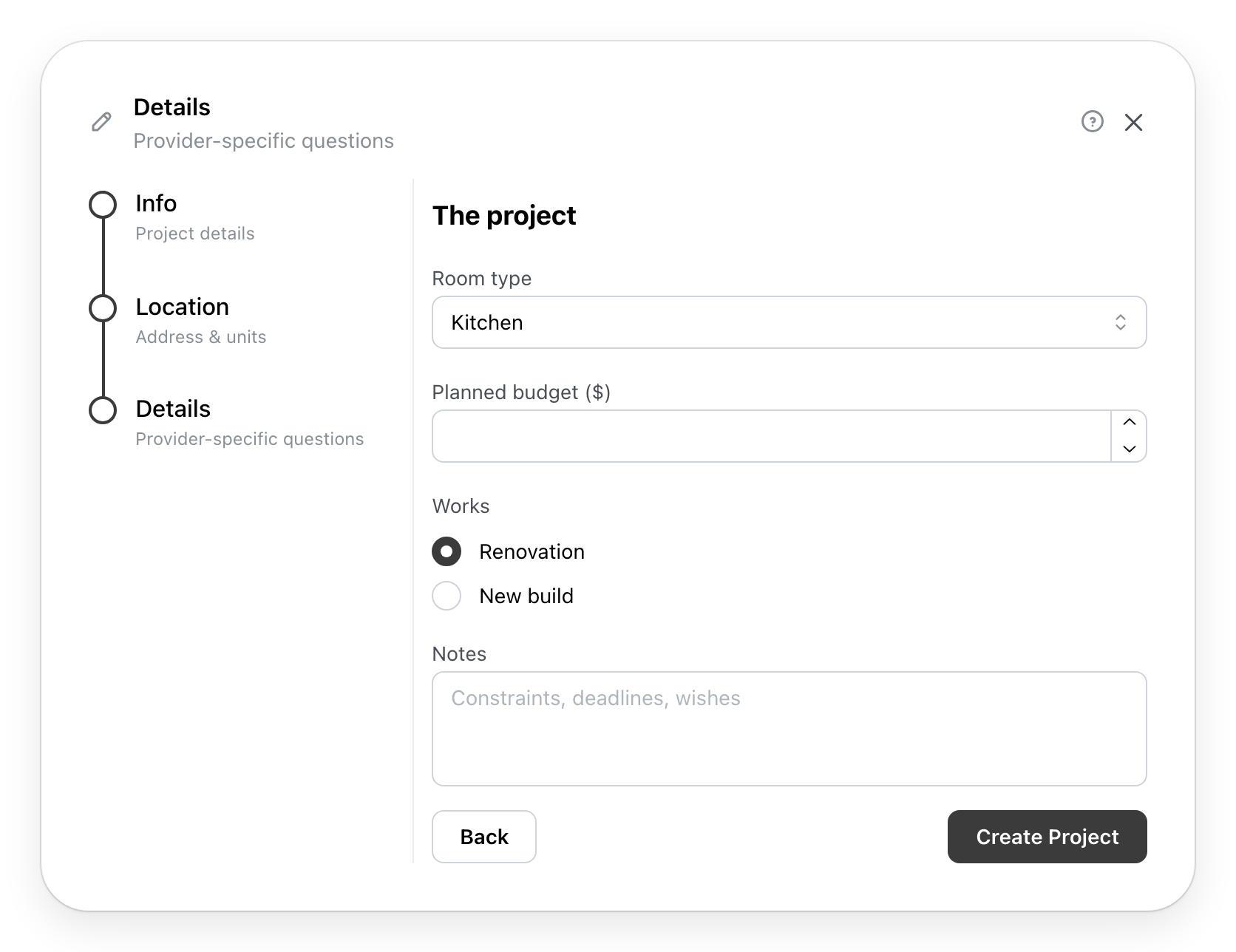
The questions come from the provider. Your answers stay with the project.