Create a project
New project, above your projects, opens the creation window. Its first step offers the ways to start:
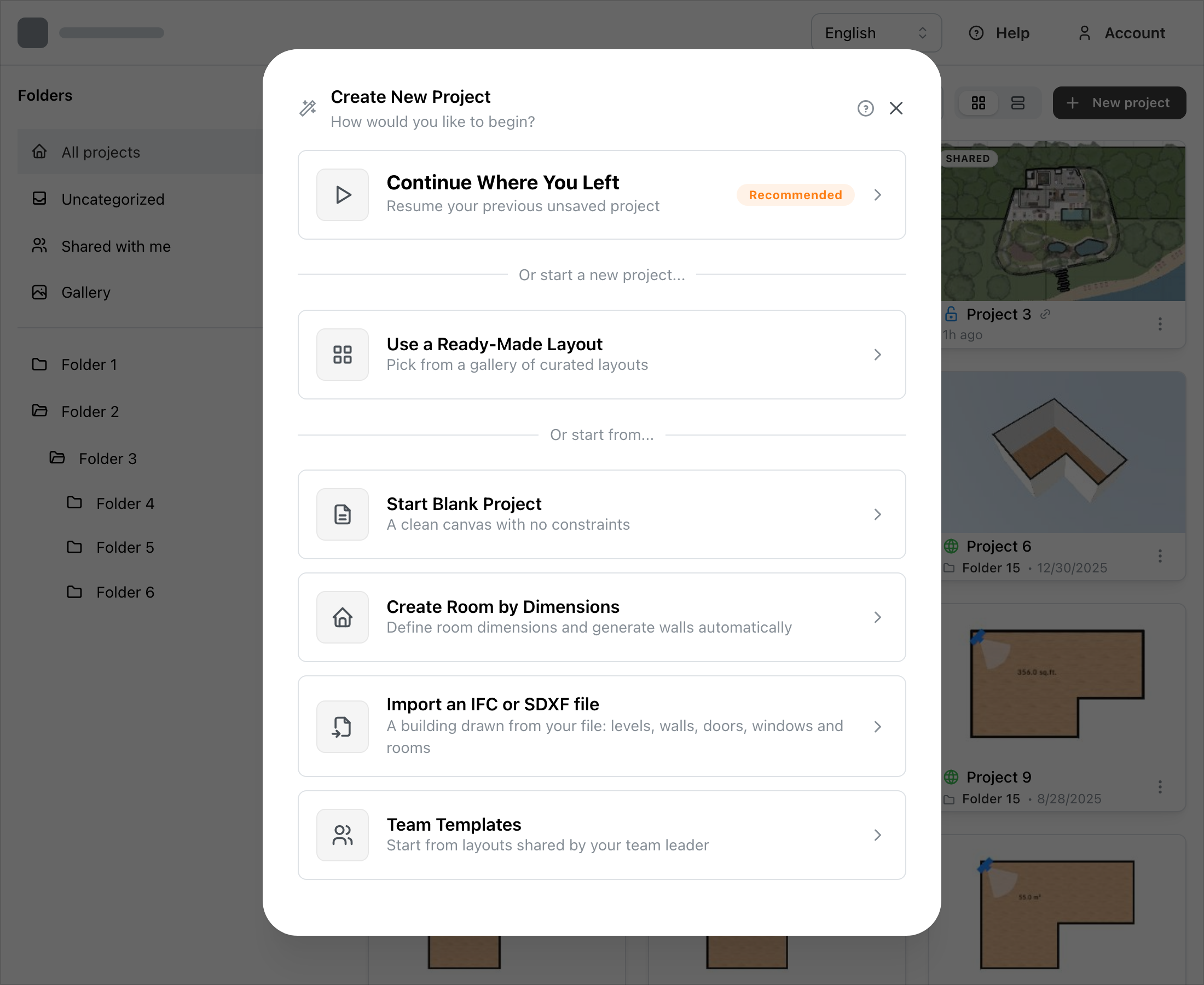
Each one has its page:
- Continue Where You Left (Page unavailable): the project drawn before you created your account.
- Use a Ready‑Made Layout (Page unavailable): a layout chosen in the gallery.
- Start Blank Project (Page unavailable): an empty plan.
- Create Room by Dimensions (Page unavailable): a room drawn to your measurements.
- Import an IFC or SDXF file (Page unavailable): a building drawn from your file.
- Team Templates (Page unavailable): a layout shared by your team leader.
Your site may offer fewer methods. When it offers only one, the window starts directly at the next step.
After the method come the shared steps, listed on the left of the window: the project's information (Page unavailable), its location and, depending on the chosen provider, its questions. Create Project then opens the project in the editor.
See also
- Folders (Page unavailable): putting the new project in a folder.
- The project menu (Page unavailable): changing its information afterwards.