Object Label Style
An object's label is the text you typed on the Label row of its property panel, written on the plan beside that object and no other. The three dots at the end of that row open this dialog, which decides how the plan draws it. It changes nothing about the catalogue name above it.
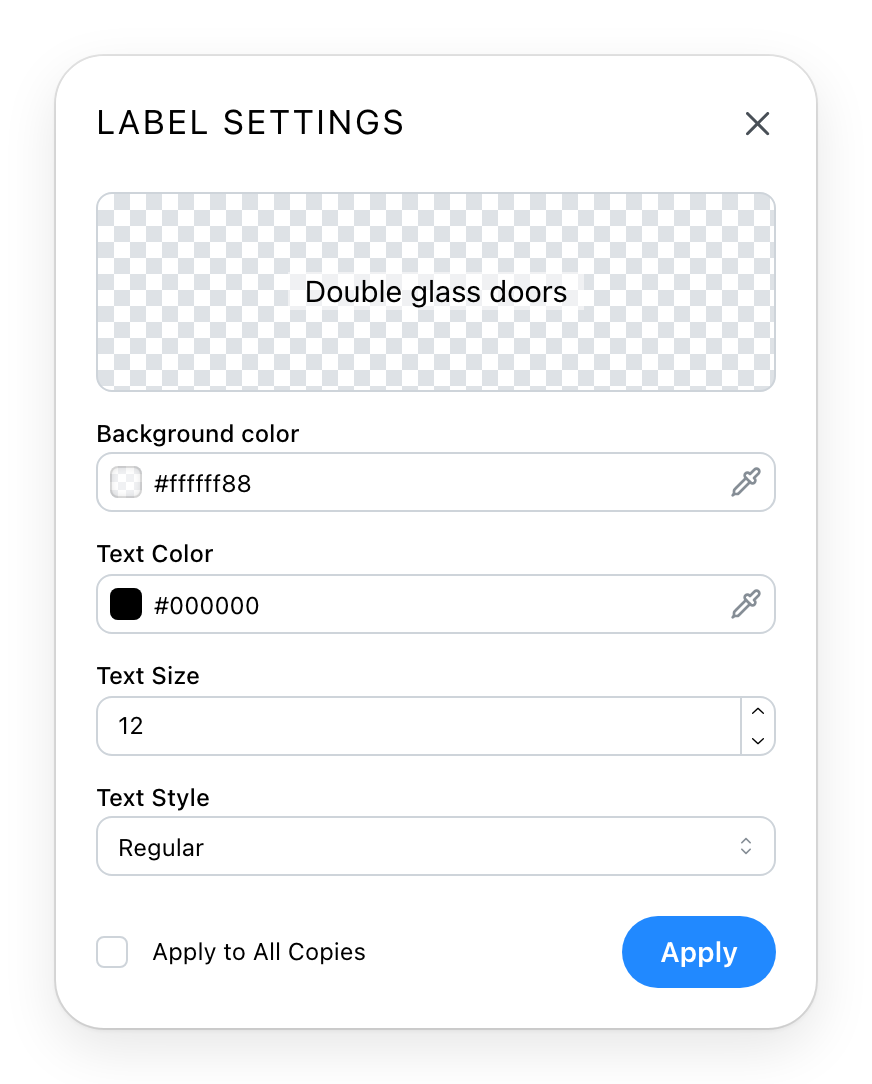
The box at the top shows the label as it will look, slightly enlarged so that a small size can still be judged. Under it:
- Background color. The box behind the text. Its colour carries a transparency, so a label can sit on a coloured floor without hiding it; the default is white at about half strength.
- Text color. The text itself.
- Text size, from 5 to 100.
- Text style. Regular, italic, bold, or both.
Nothing changes until you press Apply.
Apply to all copies
Ticked, Apply gives the same style to every copy of the same catalogue article in the project, not to this object only. Twelve desks placed from one article are twelve labels, and this is how they are styled once. Objects placed from other articles are left alone, and so is the text of each label.
The style only shows when the label does
The eye beside the Label row decides whether the plan draws the label at all. A style set on a hidden label is kept, and appears when the eye is opened.
See also
- Object Properties: the Label row, and the difference between a label and the catalogue name.
- Label Style does the same for the name a room carries.