The gallery prints on paper: Print at the foot of the Gallery opens this dialog, and there are only two things to decide.
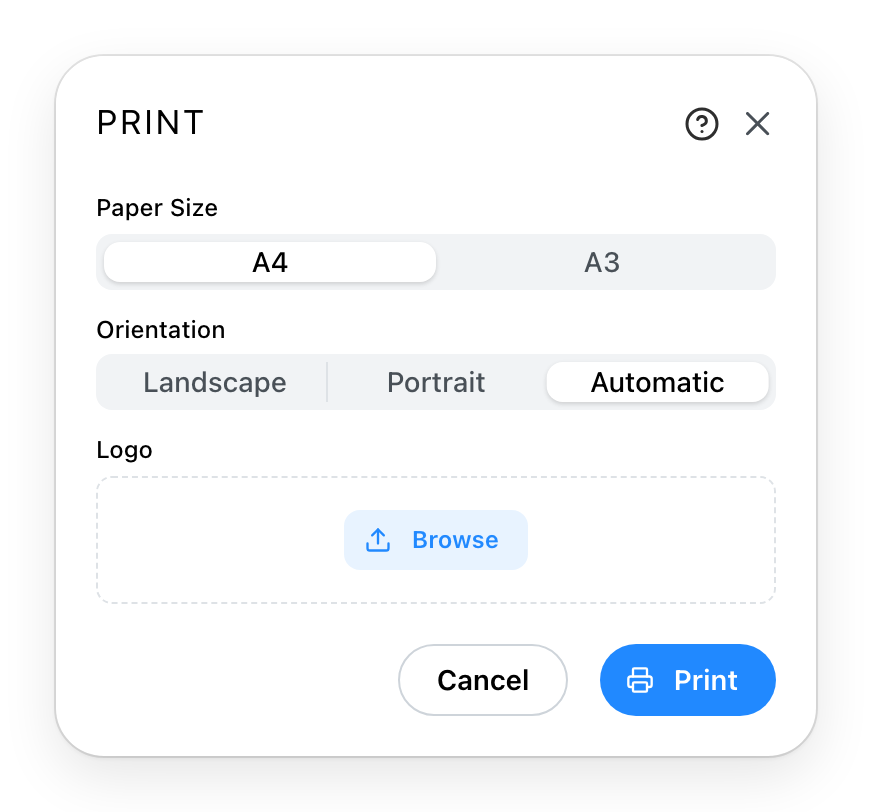
Paper size is A4 or A3. Orientation is landscape, portrait, or Automatic, which picks whichever fits each image better. Automatic is the right answer when what you are printing is a mix of plans and views.
Print opens the document in a new window, then your browser's own print dialog, so the printer, the number of copies and printing to PDF are all decided there. The document starts with a cover (the site's logo, the project's name, the date and the number of images) and a contents page, then one image per page, in the gallery's order, over a band with the logo, the image's name, the date and the page number. A plan image that fits the page prints at its true size, so its scale holds on paper. The dialog reopens on your last choices.
On the plans that include it, Ultimate and Team, the dialog also has a Logo field: drop a PNG or JPG on it, or click Browse. The cover and every page then print your logo instead of the site's. The cross removes it; if the upload fails, the field says so in red and keeps the logo you had. The logo is saved with the project.
See also
- Share Your Project sends the project itself rather than a picture of it.