Automatic Layout
One chair becomes a hundred. Select an object and open Multiply and Arrange from the Actions of its property panel: you pick an arrangement, say how many and how far apart, and the whole thing is placed at once. Your subscription must include it. A table's panel and the Table Wizard open the same dialog under Automatic Layout.
It works on several objects as well as on a single one, when your site offers it in the Multi-select panel, under Duplicate and arrange. Select several things, arrange them the way one unit of the layout should look, and the layout repeats that unit rather than a single chair.
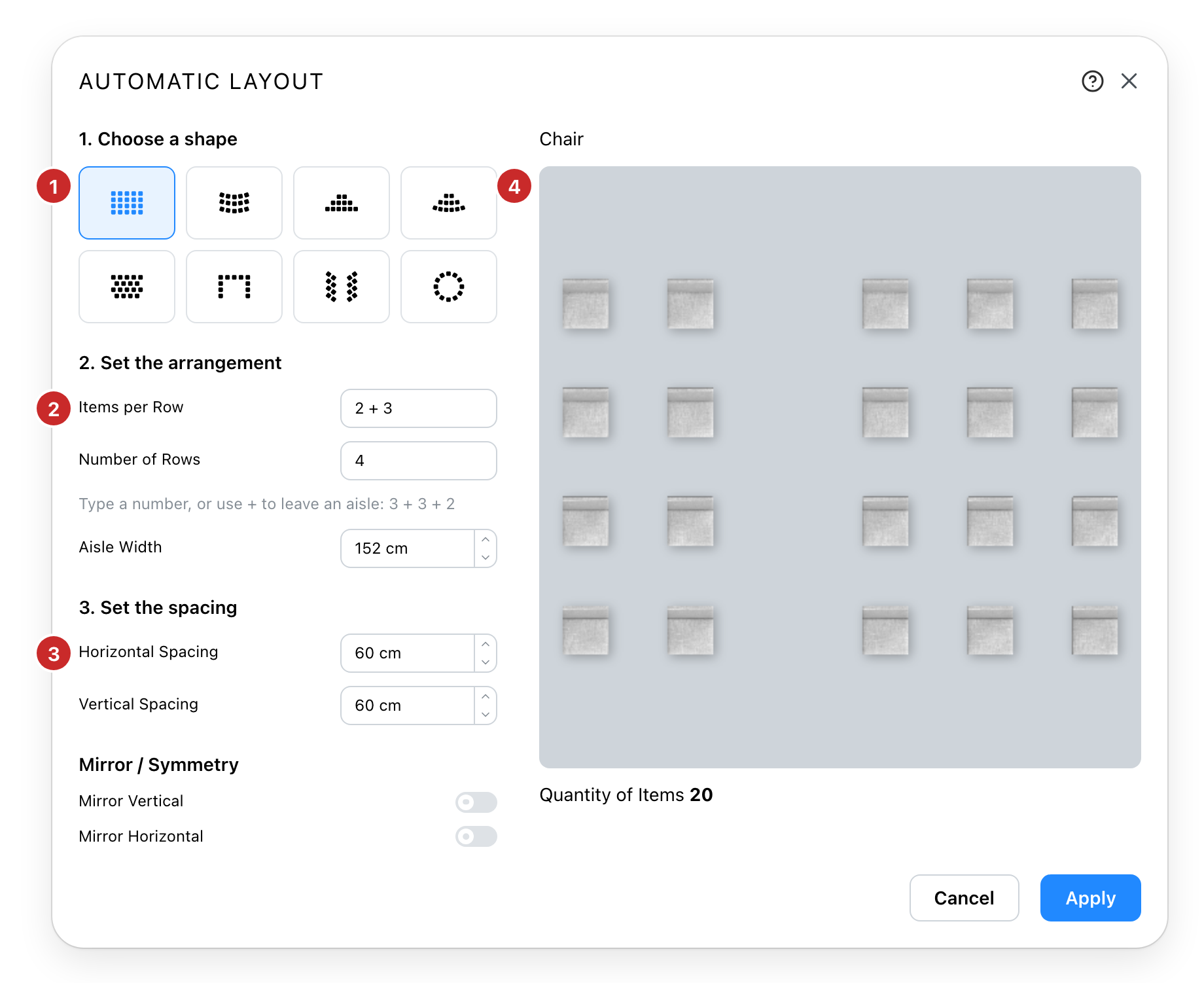
- The shapes. Eight arrangements: a grid, a curved grid, two pyramids, staggered rows, a U, a chevron and an arc. Picking one changes what the two steps below it ask for: an arc wants a radius and an angle where a grid wants rows.
- How many. The count of each row and the number of rows.
- How far apart. The gap left between two neighbours, across and down.
- The preview. The real objects at the real spacing, before anything is placed. The count under it is what Apply will create; for tables, the number of tables and of chairs.
A single object also gets Mirror Vertical and Mirror Horizontal, which turn every copy over. Tables placed this way are numbered in order when the seating chart numbers its tables.
Aisles
Where a row would run unbroken, type the blocks instead of the total. 3 + 3 + 2 means
three blocks of seats with an aisle between them, and Aisle Width appears to say how wide
those aisles are. It works the same in Number of Rows, where it leaves a cross aisle
between blocks of rows.
Some shapes have an aisle of their own instead: the two pyramids and the chevron split down the middle, and the arc has one across and one down.
The space you have
On the plan in 2D, Draw the available space steps the dialog aside and lets you drag a rectangle on the plan. It is a guide, not a limit: the arrangement centres on it, and the dialog tells you when what you have asked for is bigger than what you drew. Nothing is cut to fit. Remove forgets the rectangle.
Changing a layout you already placed
Select any object in an arrangement and open the dialog again. It reopens on that layout, with the settings you used, and Apply rebuilds it in place. Asking for more adds objects; asking for fewer removes the extras, after a confirmation.
Unlock layout breaks the link instead. The objects stay exactly where they are and become ordinary objects you can move one by one, but they can no longer be rearranged together, and that cannot be undone.
See also
- Catalog places the object this dialog then multiplies.
- Precise Placement moves one object, or a whole selection, by an exact distance.