The Table Wizard
The Table Wizard composes a table: the table itself, then what goes around it and on it. It opens from Create a Table in the seating chart to create a table, and from a placed table's panel or its row in the seating chart to change one. Everything you set is drawn in the preview as you set it, and nothing reaches the plan until you apply.
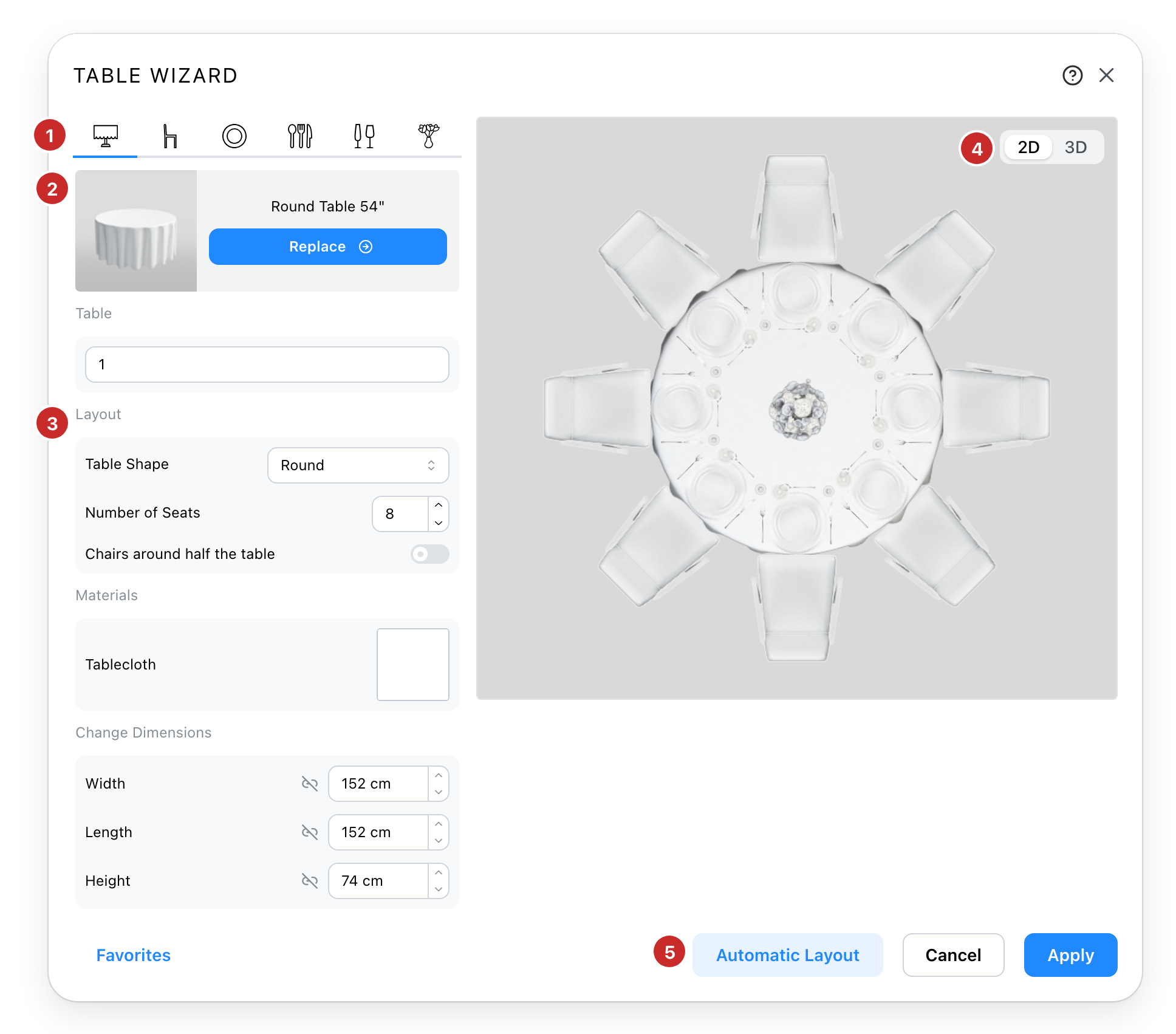
- The six parts. Table, chairs, plate, cutlery, glasses, decoration. Each tab shows the model in place and what can be set on it. A table with no seat opens only the table and the decoration.
- The model. The piece from your catalogue; the button opens the catalogue to replace it.
- The layout. The table's shape, and how many seats on each side of it.
- The preview. The real table, chairs and tableware, redrawn as you change them, from above or in perspective.
- Automatic Layout. Places this table many times at once, in rows or an arc.
The table this page is written on is a round table of eight, dressed: a chair, a charger plate, a fork, a knife and a spoon, a wine glass and a goblet, a floral centerpiece. Every tab reads the same way: the model at the top, then what can be set on it. The table, the chair and the plate have Replace to pick another from the catalogue, and Choose when there is none; the chair and the plate also have Remove. A piece of cutlery, a glass or a decoration has only Remove: to change one, remove it and add another. Every piece also offers its Custom Colors, when its model allows it, and Change Dimensions.
The table
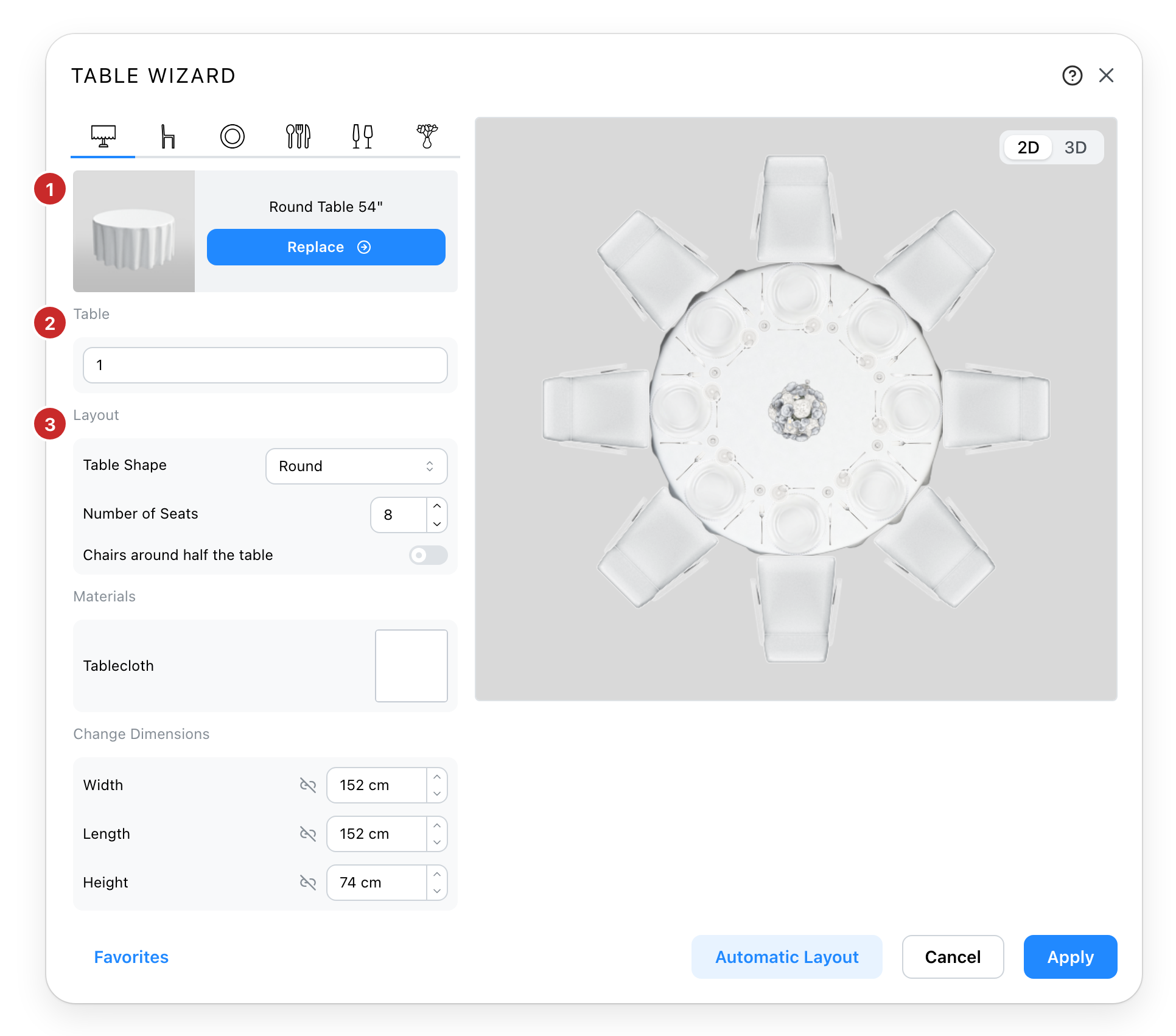
- The model. The table from your catalogue. Replace opens the catalogue on the tables, with a search, a Shape filter and a Linen switch to narrow it.
- The name. As it reads on the plan and in the seating chart. Optional: with automatic numbering on, a table without a name gets the next number when it is placed.
- The layout. The shape, and the seats. The shapes are round, half-round, oval, rectangular and serpentine. A round table has one count; a rectangle has one per side; a half-round its straight side and its arc. A round table of two seats or more can also gather its chairs on one half, with Chairs around half the table, and Chair Spacing sets the angle between them.
The shape comes with the model you pick and can be changed by hand. Each side has a limit, worked out from the table's size and the chair's width, and the seat count stops there. When a smaller table or a wider chair leaves more seats than fit, the wizard says so and keeps them, and the guests already seated keep their seats.
Below the layout, a table published with changeable parts shows them under Custom Colors, one colour picker per part; a table with a cloth shows Materials instead, and the linen opens the material dialog on the linens and colours your site offers. Change Dimensions resizes the model, which moves the seats with it.
Chairs
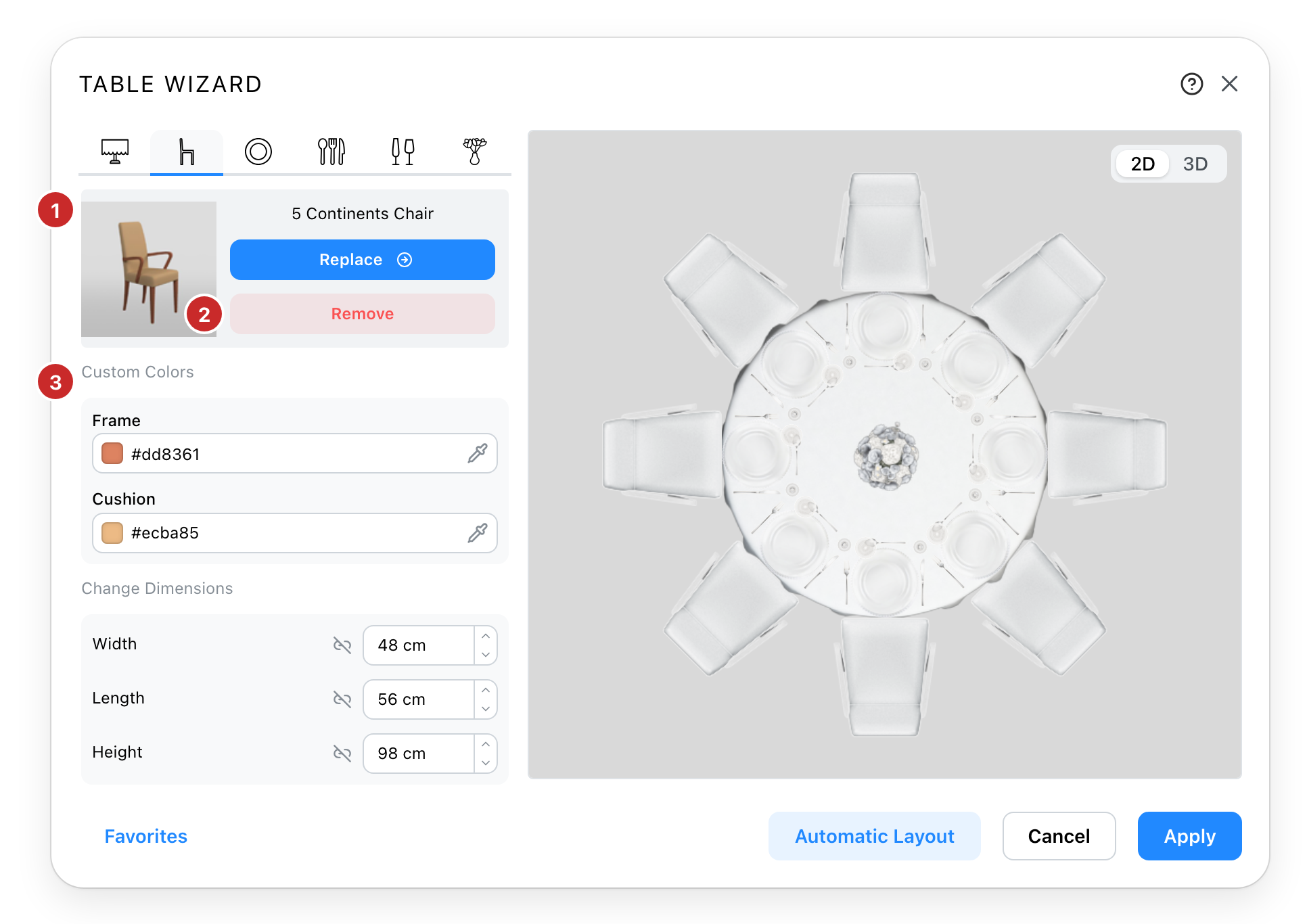
- The chair. One model for every seat. Replace opens the catalogue on the chairs.
- Remove. The seats stay without a chair, as places along the edge.
- What can be set on it. Its colours, when the model allows it, and its size. The chair's width is what spaces the seats, so a wider chair means fewer on a side.
Without a chair
A high table carries plates and glasses and no chairs. Remove the chair, and the seats remain:
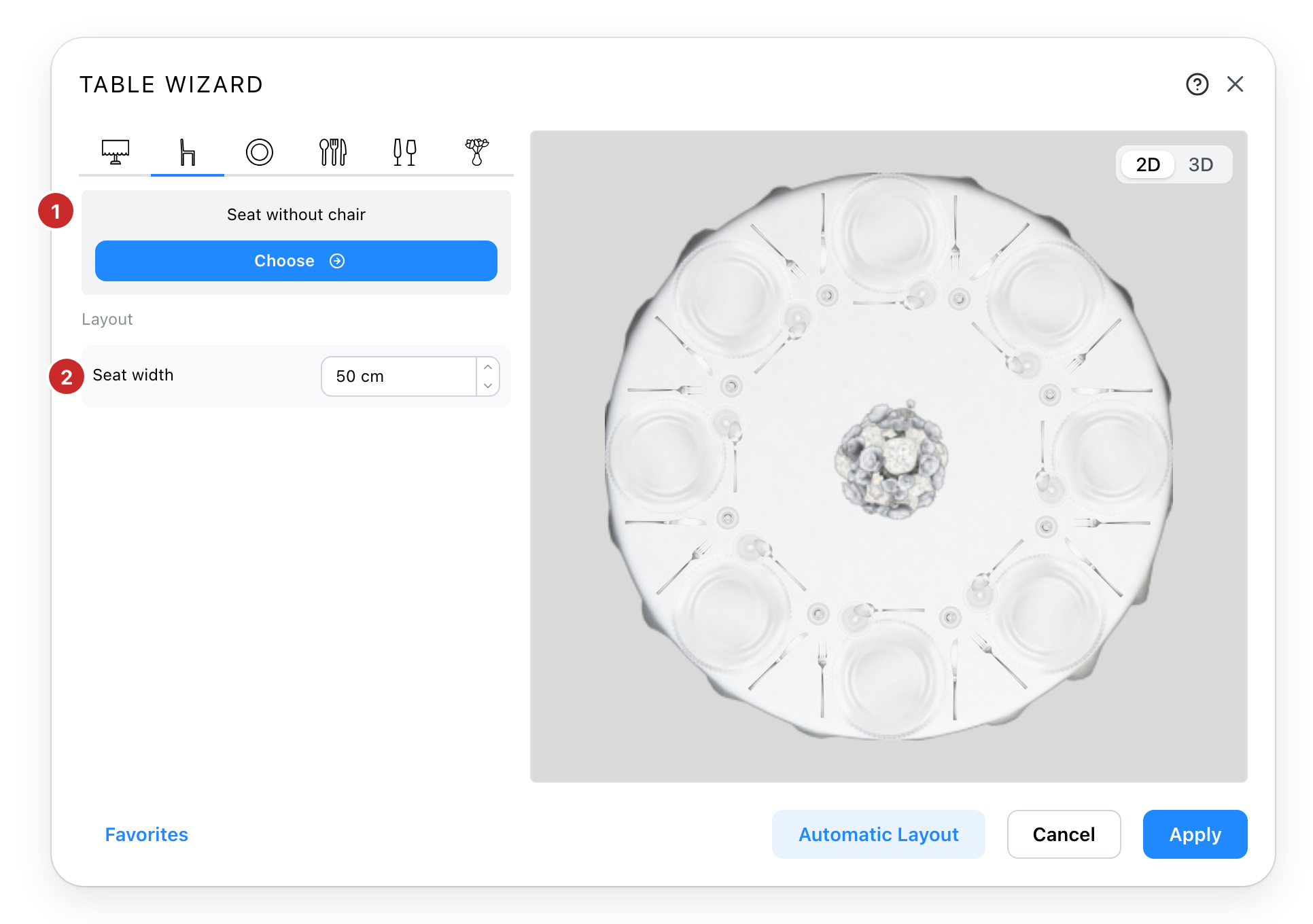
- No chair. The seats stay, drawn as places along the edge; Choose brings a chair back from the catalogue.
- Seat width. How much of the edge each place takes, which sets how many fit on a side. With a chair, its own width does this.
The plate
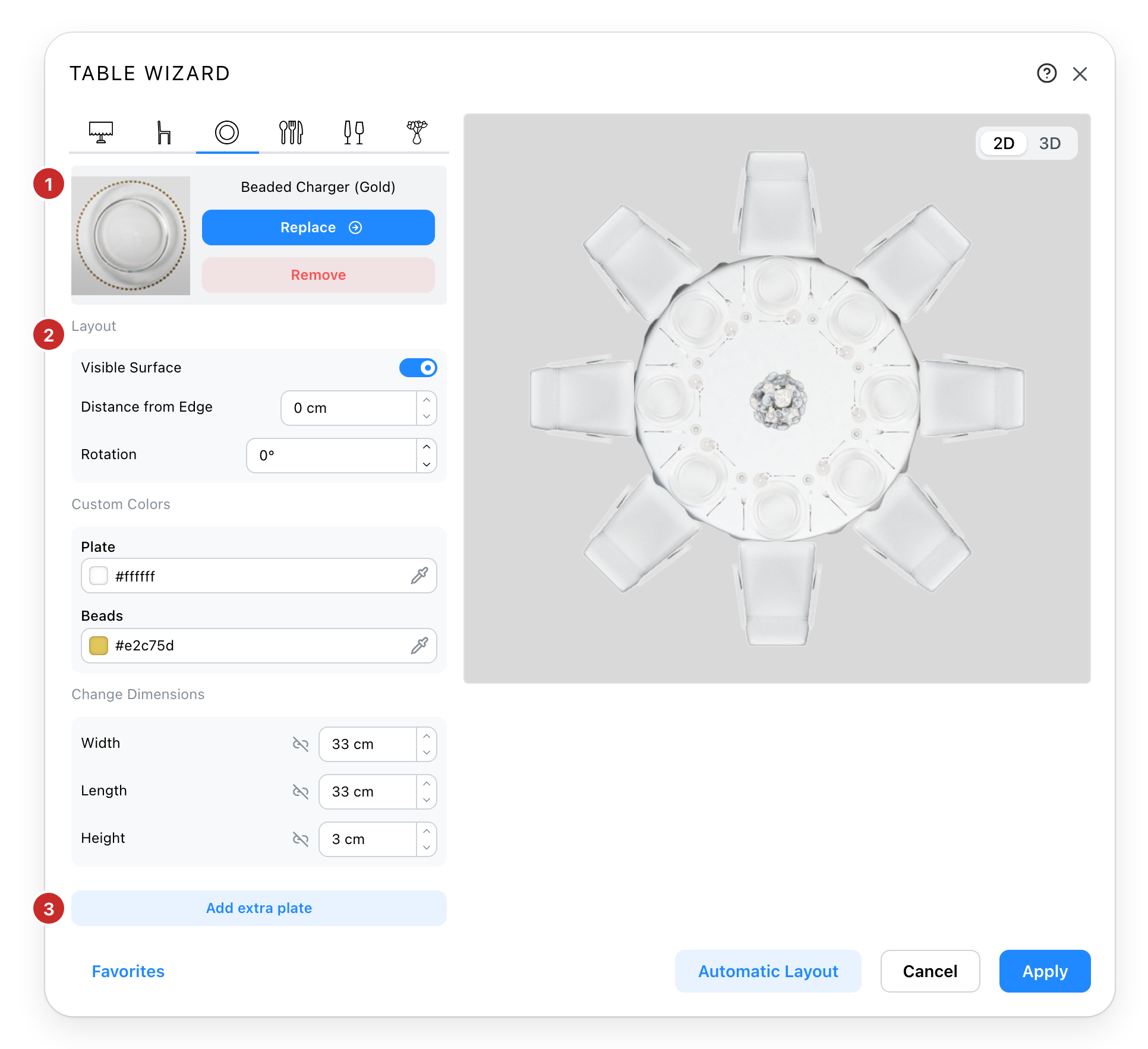
- The plate. One in front of every seat, and the anchor of everything else on the setting: cutlery and glasses take their place around it. Replace and Remove as for the chair.
- The layout. Visible Surface shows or hides it without losing its place; Distance from Edge pulls it in from the table's edge; Rotation turns it. Its colours and size are offered while it is visible.
- Add extra plate. A bread plate or a bowl on top of the first, with its own settings.
Without a plate, the pieces line up on the edge in front of the seat.
Cutlery
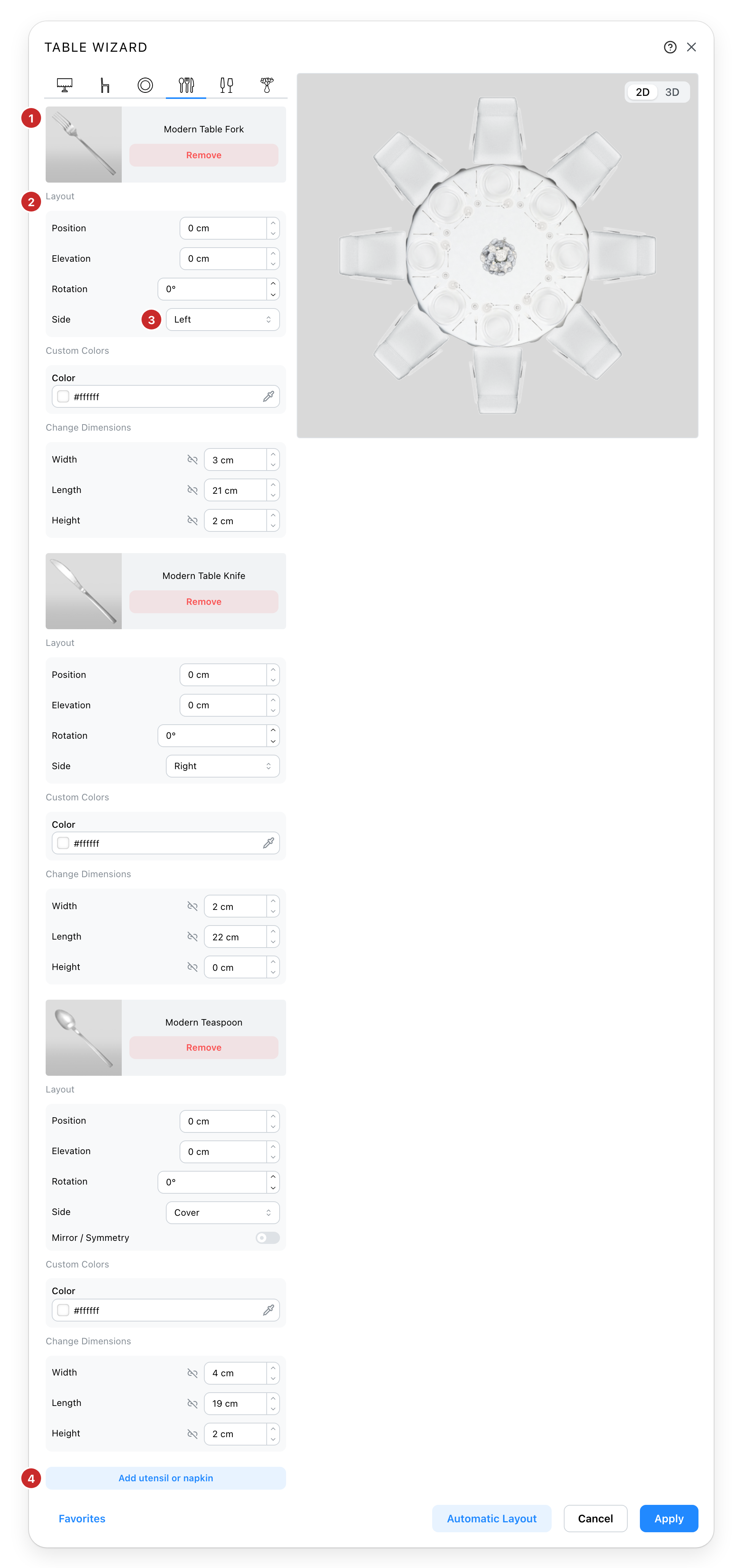
- One piece. Its model and Remove. The knife and the spoon follow below, each in its own block, and each is placed at every seat.
- Its layout. Position along the edge, Elevation off the table, Rotation, and the side it sits on.
- The side. Left or right of the plate, or above it. Above, the piece lies across the setting, and Mirror / Symmetry turns it the other way.
- Add utensil or napkin. Opens the catalogue on the cutlery. Add as many as the setting needs.
Glasses
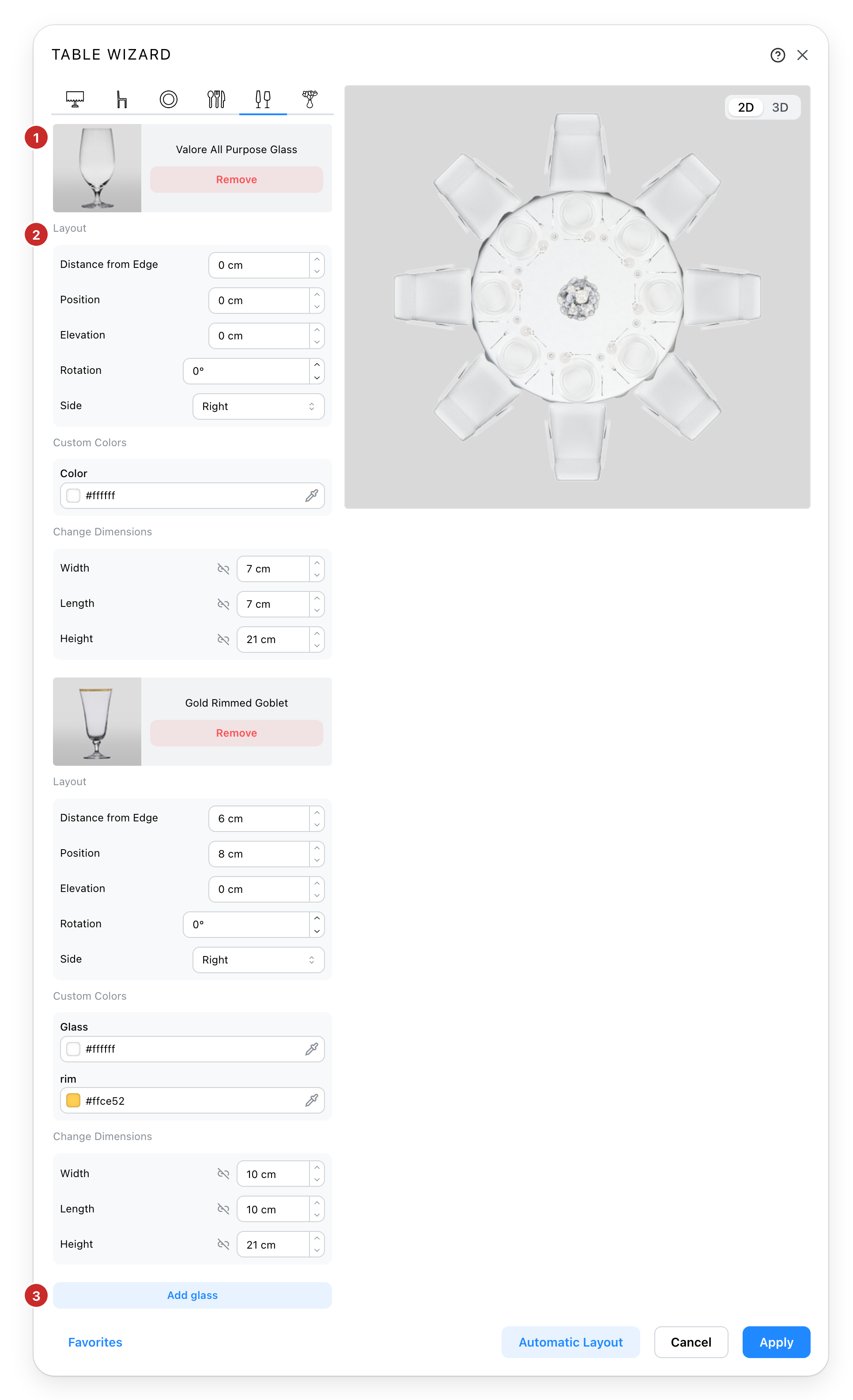
- One glass. Its model and Remove; the second glass follows below.
- Its layout. Distance from Edge and Position move it in both directions, Elevation and Rotation as for the cutlery, and the side of the plate it stands on.
- Add glass. Opens the catalogue on the glasses.
A glass starts past the plate's corner, on the side you choose; the two offsets set it from there.
Decoration
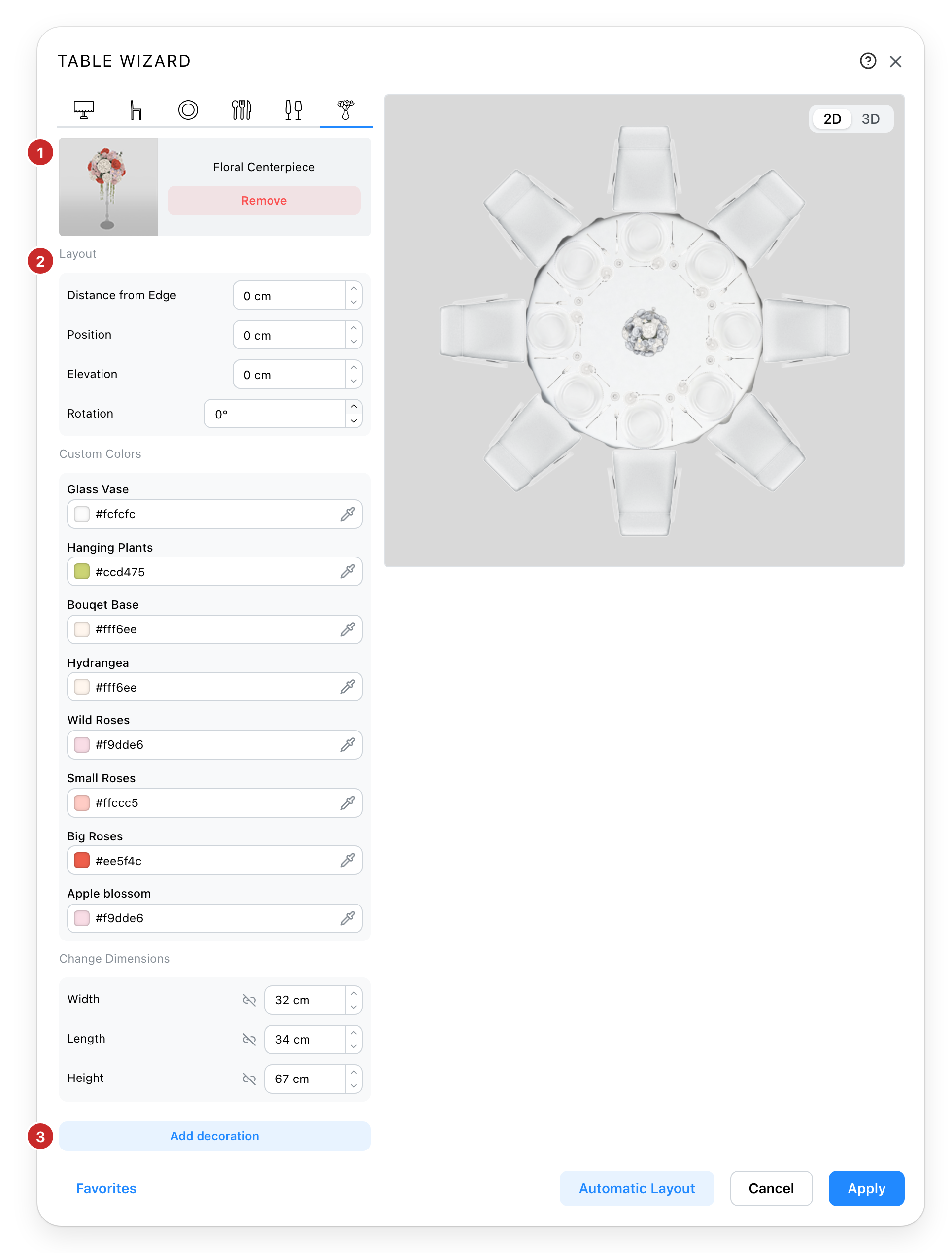
- The centerpiece. Placed for the whole table, at its middle, and not at every seat. Its model and Remove.
- Its layout. Position and Distance from Edge move it off the middle in both directions; Elevation and Rotation as everywhere else.
- Add decoration. Opens the catalogue on the centerpieces.
Placing it
Apply closes the wizard with the table hanging from your pointer; click the plan to set it down. On an existing table, Apply changes it in place, and its guests keep their seats as long as the seats exist.
Automatic Layout places the table many times in one go, in a grid, a U or an arc. A new table is put on the plan first, then the dialog opens on it. With automatic numbering on, the tables are numbered in order.
Favorites
Signed in, the Favorites button saves a composition under a name and loads it back on any table, in any project. A favourite that no longer fits the catalogue is refused without touching the table.
See also
- The Seating Chart tab, where tables are listed and guests are seated.
- Table Properties, the panel of a placed table.
- Automatic Layout, the dialog behind the button of that name.
- Materials, the dialog behind the cloth.