Table Properties
Select a table on the plan and this panel opens beside it. It is the short way to what the table is: its name, the wizard that composed it, its seats, and the three things done to it from here.
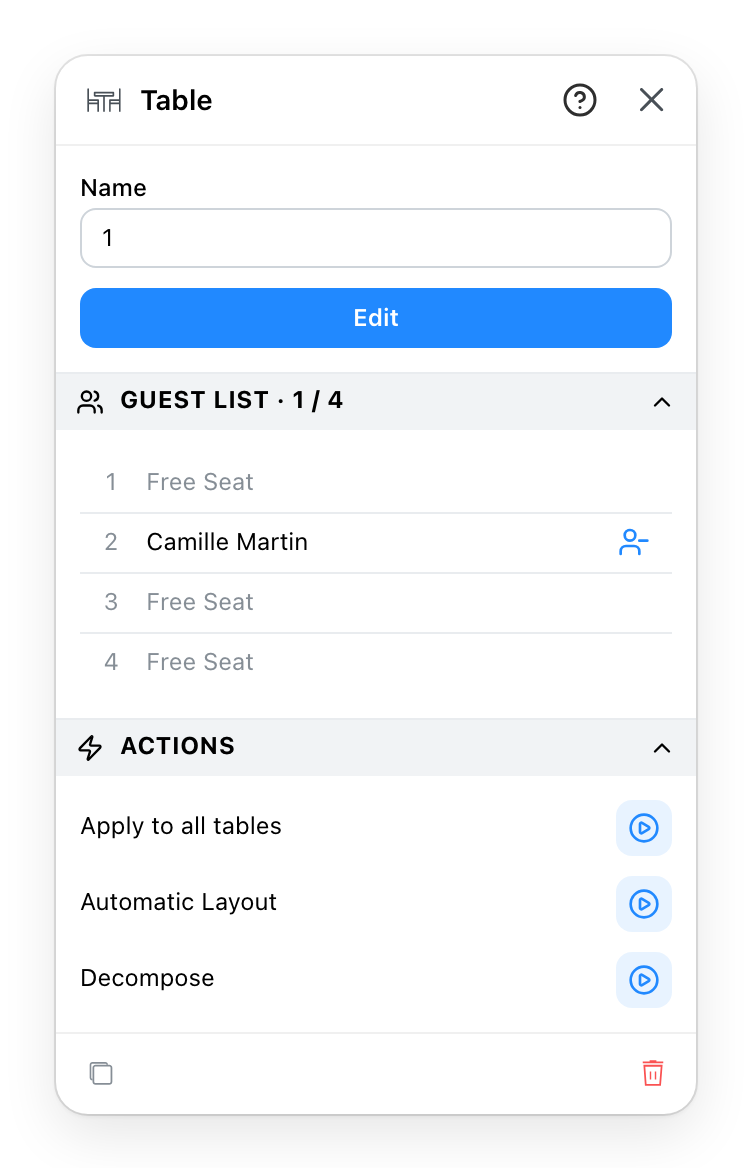
- The table's name as it reads on the plan and in the seating chart. A number if the tables are numbered automatically.
- Opens the wizard on this table to change its model, its seats or its tableware.
- Its seats taken out of its total.
- A seat and who sits there. Click the name to open the guest, or a free seat to write a new guest onto it; the icon sends them back among the unassigned; drag a name onto another seat to move them, and onto a taken seat to exchange the two.
- Copy this table's composition to the others, place it many times with Automatic Layout, or break it into its separate objects.
- Every property panel ends with a duplicate and a delete, and the
?in its header opens this page. A table duplicated here has no name, even with automatic numbering on.
Apply to all tables
One table set up with care can dress the whole room:
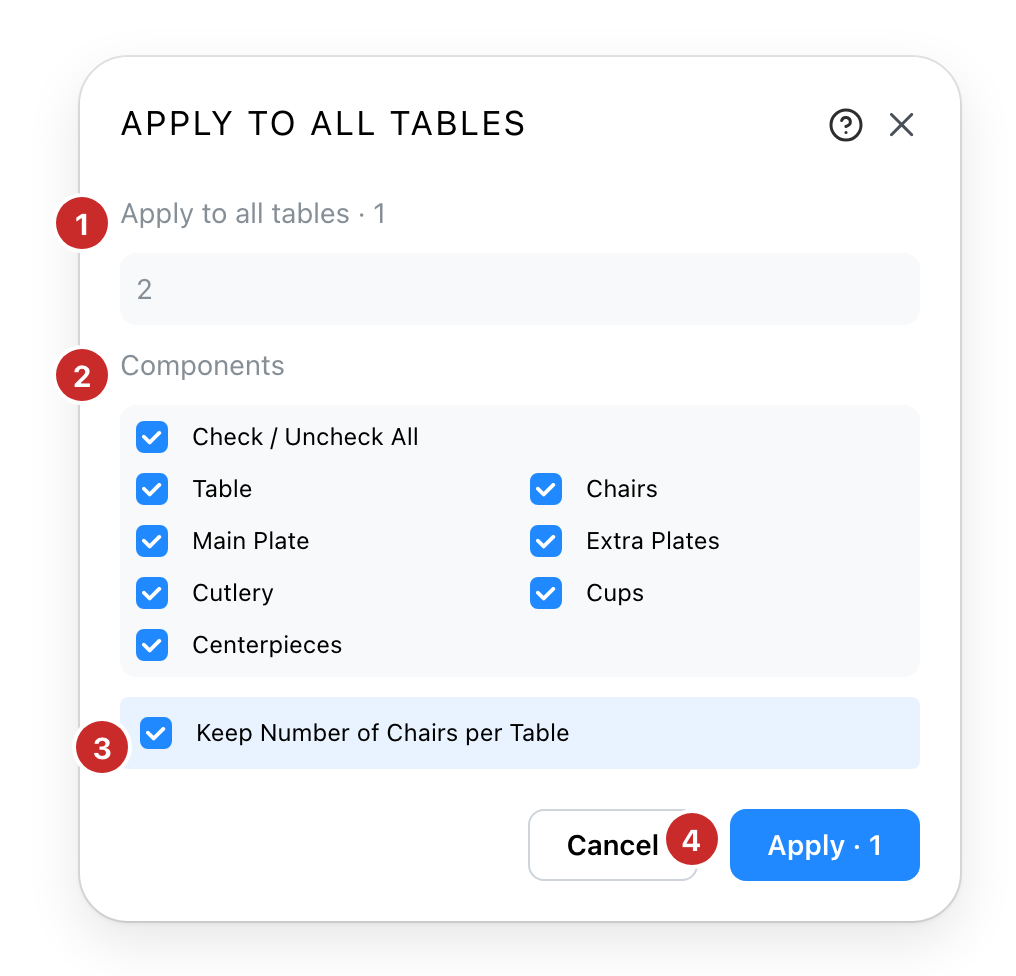
- The tables that will change. Every other table of the project, listed by name. When this table came from an automatic layout, a switch, on at first, keeps only the tables of that layout.
- What to copy. Untick a part to leave it as each table has it. A part this table does not have, a chair or a plate it lost, is copied as an absence: the others lose theirs too.
- Keep Number of Chairs per Table. Each table keeps its own shape, number of seats and guests. Untick it, with the table part ticked, to give them this table's shape and seats as well.
- Apply. The count is how many tables will change.
Decompose
The last action breaks the table into the objects it is made of: the table, each chair, each plate become ordinary objects you can move one by one. The seats go with it, and their guests go back among the unassigned. A confirmation asks first.
See also
- Table Wizard, which the Edit button opens.
- The Seating Chart tab, where the same seats are filled by drag.
- Automatic Layout, the dialog behind the action of that name.