The Seating Chart tab
The Seating Chart tab, opened from its tile in the rail, is your guest list laid over your tables. Guests without a seat wait at the top; below them, one row per table on the current level, each opening on its seats. A guest goes from one to the other by drag, and what you do here is what the plan and the 3D view show on each chair.
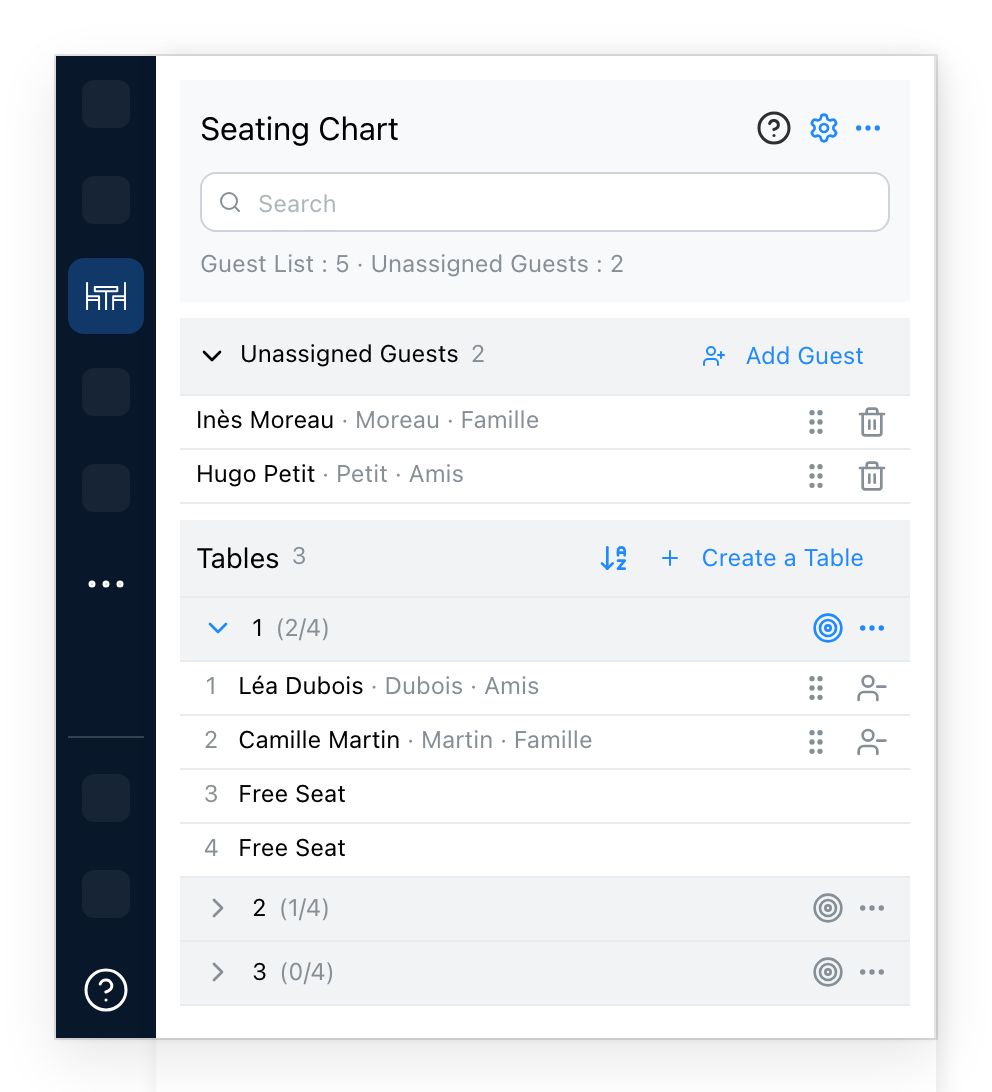
- The gear opens the seating chart settings: the numbering, the names on the plan and the colours by title. The dots hold the Excel import, export and template.
- Finds a guest or a table by name, family or group, accents and case ignored. A table holding a match opens by itself. Under it, how many guests the list holds and how many have no seat.
- Opens a blank guest form. The count beside the title is how many guests have no seat; click the title to fold the list.
- A guest without a seat, with their family and group. Click the name to open their form; the handle drags them to a seat; the bin removes them from the list, after a confirmation.
- Sorts the tables A to Z or Z to A, numbers in order, and opens the wizard on a new table.
- One row per table on this level: its seats taken out of its total, the chevron to open them, the target to find it on the plan, the menu to edit or duplicate it. Click the name to rename it.
- A seated guest. Drag them to another seat or table; the icon sends them back among the unassigned.
- A free seat, where a guest can be dropped. Click it to write a new guest straight onto it.
Seating a guest
Take a guest by the handle and drop them:
- on a free seat, which is then theirs;
- on a table's row, and they get its first free seat. A full table refuses, and says so;
- on a seat that is taken, when the guest already had a seat: they take it, and the guests of that table move along by one seat towards a free one. At a full table, the two exchange seats. A guest without a seat can only be dropped on a free one;
- back among the unassigned, to free their seat.
Nothing is written while you drag, and Esc puts everything back. From the keyboard, Space
picks up the guest whose handle has the focus, the arrow keys move them, and Space again drops
them. Without dragging at all, open the guest's form and choose the table
and the seat there.
The tables listed are those of the level you are on; the guests are those of the whole project, so a guest seated on another level is not offered twice.
Settings
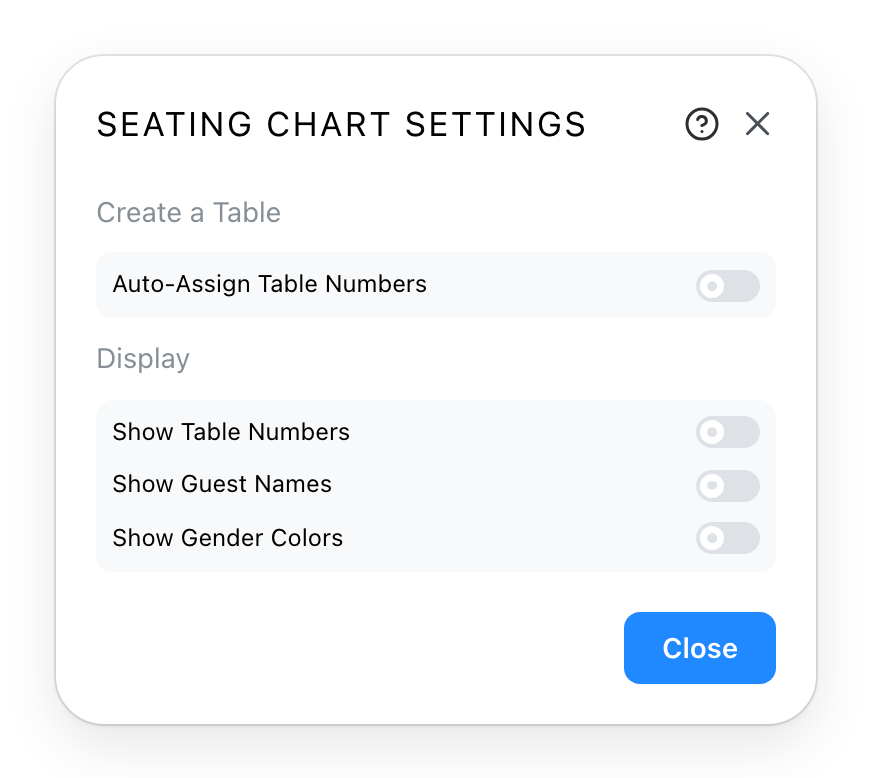
Four switches, applied as you flip them:
- Auto-Assign Table Numbers. A new table without a name takes the next number, and so do the tables of an Automatic Layout and a table duplicated from its row's menu.
- Show Table Numbers. The table's name written on the plan and in 3D.
- Show Guest Names. Each guest's name on their chair, on the plan and in 3D.
- Show Gender Colors. Blue and pink behind the names, by title. Dr stays grey, and all names are grey with the switch off.
Excel
The dots at the top of the tab export the guest list as an Excel file, offer a blank template, and import one. The file has a sheet of instructions and a sheet of guests: one row per guest, their table by name and their seat by number, so a file made by hand works as well as one exported from here. An empty seat number takes the table's first free seat; an empty table leaves the guest unassigned. The export adds a third sheet that counts each choice of course.
Importing never writes anything before you have seen what it will do:
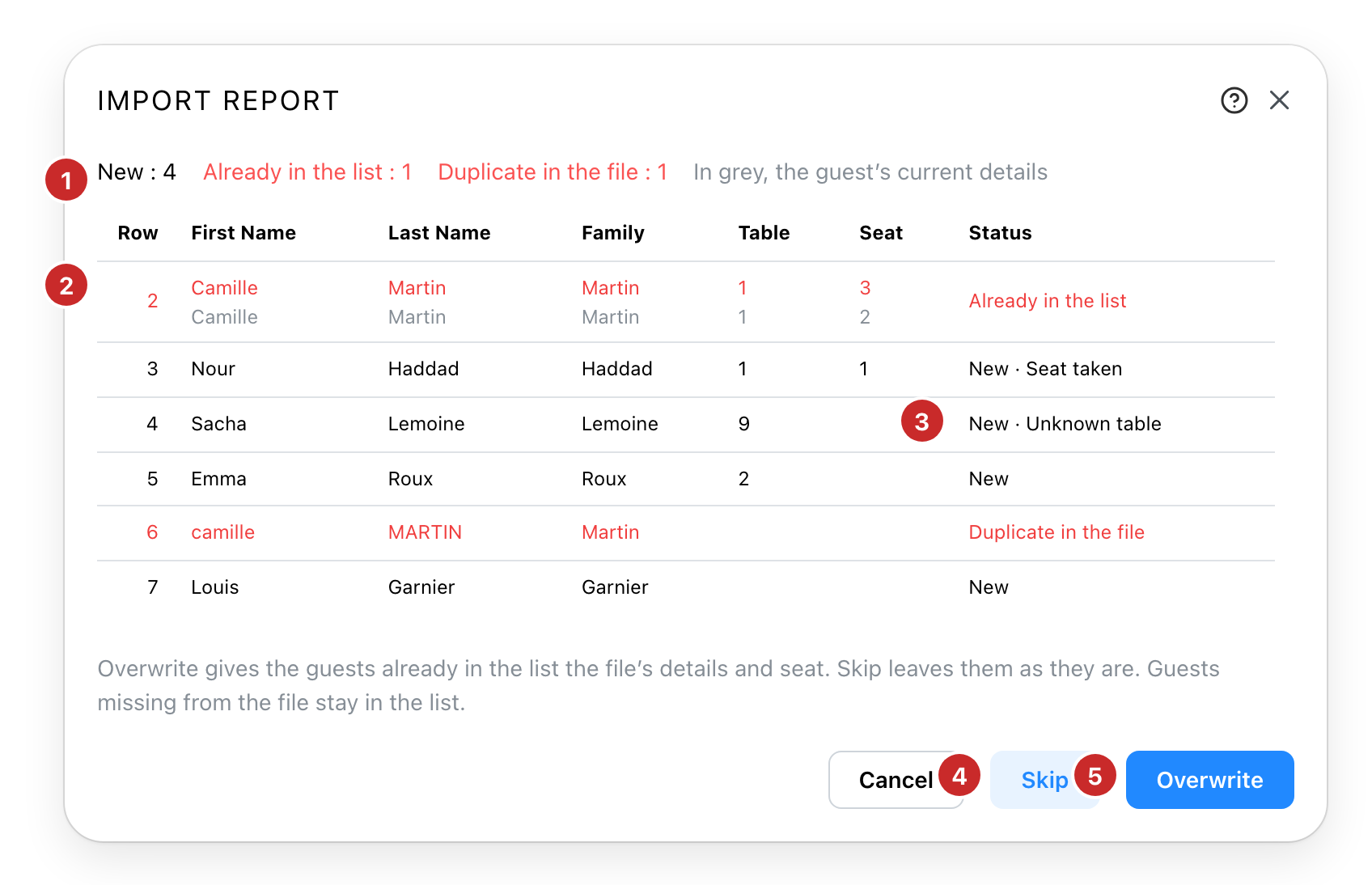
- The counts. How many rows are new, already in the list, or repeated in the file.
- A name already in the list. In red, with the guest's current details in grey under the file's. A name repeated in the file is red too, and only its first row is imported.
- The status. Why a row will be seated or not: a table the plan does not have, two tables with that name, a seat number the table does not have, a seat already taken, a table with no seat left. The guest is imported anyway, without a seat.
- Skip. Adds the new names and leaves the guests already in the list as they are.
- Overwrite. Gives the guests already in the list the file's details and seat.
When no name of the file is in the list or repeated, a single Import button replaces these two. A guest is recognised by their name, in any case, with or without accents, spaces or hyphens. Guests that are in the list but not in the file stay where they are: importing adds and updates, it never empties the list. The row number is the file's own, so a row to fix is easy to find.
See also
- Guest Information, the form behind each name.
- Table Wizard, which composes the tables listed here.
- Table Properties, the panel of a placed table.