Notes
A note is a coloured patch on the plan with a piece of text in it: a remark for the client, an instruction for the fitter, a reminder to yourself. Draw one with Note: the arrow of Drawing Tools in the control bar opens the menu, where Note is among the Annotation Tools; then drag a rectangle on the plan. The Drawing Tools tab of the rail lists it too. A note is moved and resized on the plan. In 3D it shows as a marker whose bubble carries the text.
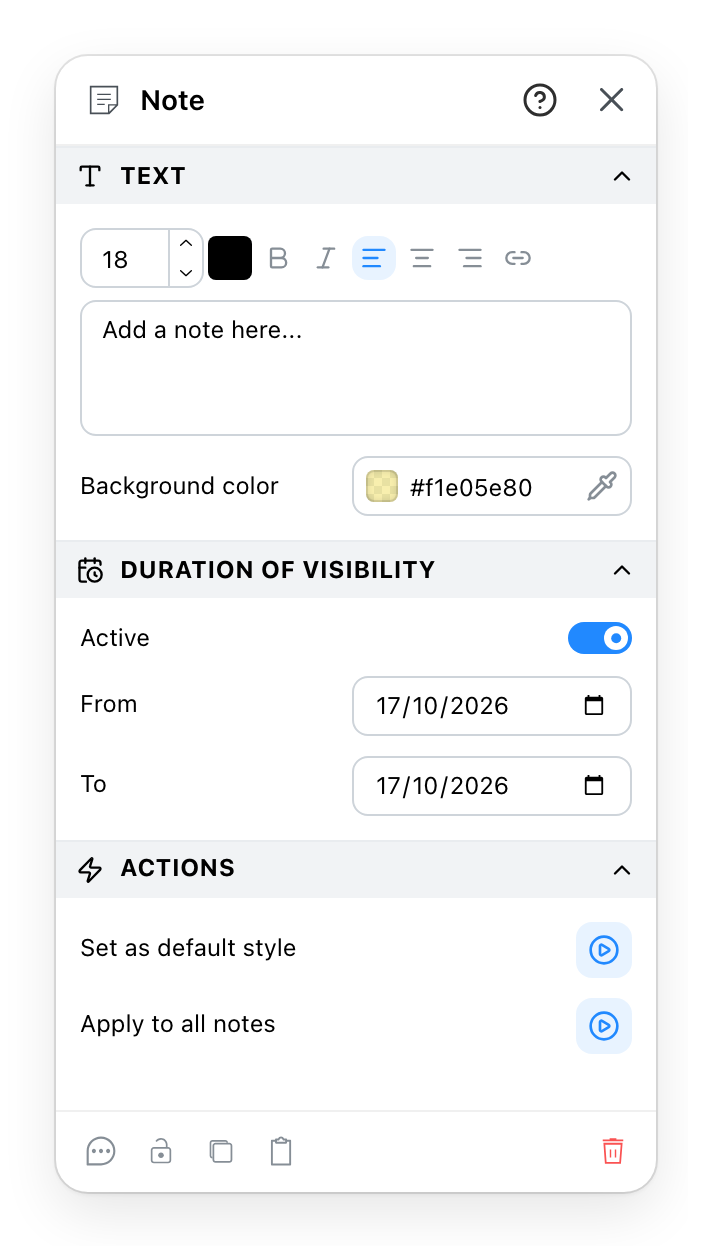
- How the text is drawn: its size, colour, weight, slant and alignment. The last button adds a link.
- What the note says, on as many lines as it needs.
- The patch behind the text. It can be made partly see-through, so the plan shows under it.
- With the switch on, the note is shown only between these two dates, both days included: for a remark that holds while the works last. Outside them it is hidden in 3D. The plan keeps showing it.
- The next note you draw starts with this text style and this background.
- Gives this style to every note in the project, on every level and in every version. It can be undone.
- A comment, a lock, a duplicate, a copy and a delete. The comment is a remark about the note
for your team, and it is not printed on the plan. The
?in the header opens this page.
See also
- Drawing Tools is where the Note tool is.
- Comments are the remarks attached to any object, notes included.
- Levels and Versions are what "every note in the project" spans.