Object Properties
Select an object placed from the catalogue and this panel opens beside the plan. It holds everything that object carries: what the catalogue knows about it, the space it occupies, the colours it was published with, what the project records about it, and the things done to it from elsewhere.
Two of the six sections below are there only when the object has something to put in them, so a plain chair opens on four. The object photographed here has all six.
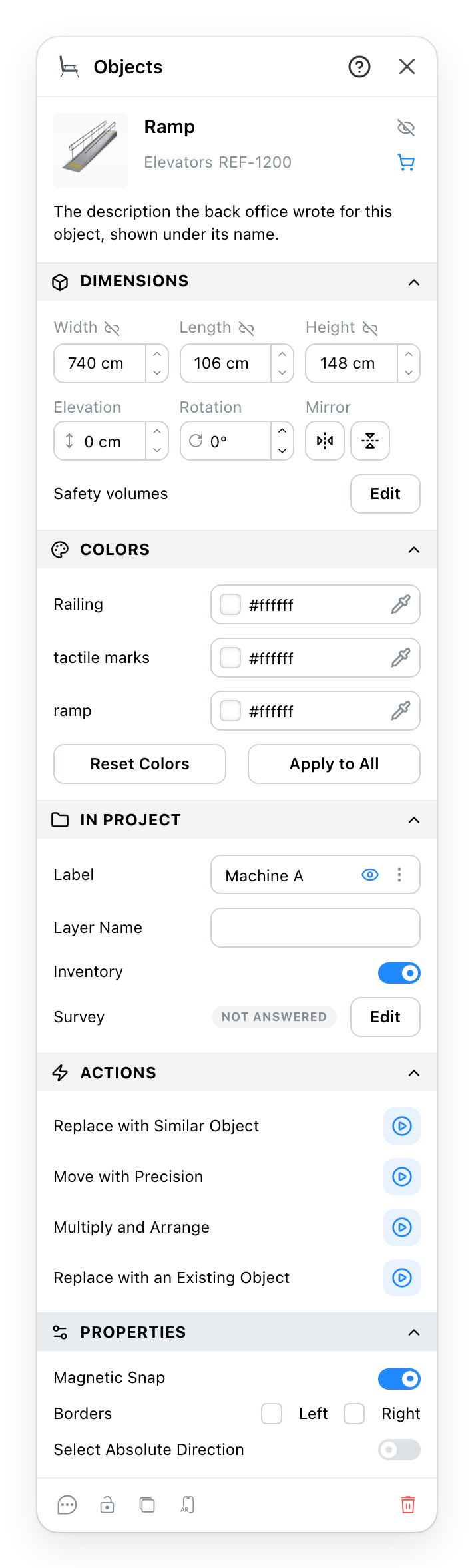
- What the catalogue holds about this object: its picture, the name it was filed under, its category and its reference, then the description the back office wrote when there is one. The cart, when the catalogue gives a shop link, opens the supplier's page for it. The eye, Show Name in 2D, writes that catalogue name on the plan or keeps it off, and it is a different name from the label further down.
- The size it is drawn at, how high off the floor it sits, how far it is turned, and two mirrors that flip it without turning it. On sites that use security volumes, the row at the foot opens the clearance to keep free around it.
- One row for each part the model was published with as changeable, so what appears here differs from one article to the next: a colour, a material, or a list of finishes.
- What the project records about the object rather than what it looks like: the name written beside it on the plan, the layer it belongs to, whether the inventory counts it, and the survey its article carries.
- Four things done to the object from somewhere else: swapping it for a comparable article, moving it by typed distances, filling an area with copies of it, and taking on another object already in the project by clicking that one.
- The rows an object has only sometimes, and the section is absent when it has none: whether it snaps to what it is meant to snap to, which borders are drawn where it cuts through a wall, and which side of that wall it counts as facing.
- Notes, a lock, a duplicate and a delete, and the
?in the header opens this page. The extra icon draws a QR code that opens this object on a phone, with the colours set above.
1 4 The two names
An object has a catalogue name and a label, and they are not the same thing.
The catalogue name is what the article was filed under, at the top of the panel, and it is the same on every copy of that article in every project. You do not type it. The eye beside it decides whether the plan draws it.
The Label is yours, one per object. Type it and the plan writes it beside that object and no other. Its own eye shows and hides it, and the three dots decide how it is drawn.
So an object can show both, either, or neither. A layout where every desk reads Desk is the catalogue name showing; a layout where they read Desk 1 to Desk 12 is twelve labels.
2 Turning, mirroring and the keyboard
Rotation is in degrees. The two mirrors flip the object across its own axis without changing that angle, which is how a left-handed version of a model is obtained when the catalogue publishes only the right-handed one.
Turning and both mirrors also have keyboard shortcuts, and they reach whatever is selected. An object is turned and flipped without coming back to the panel, and the panel follows. The shortcut turns by a quarter at a time; the field is where an angle that is not a quarter is typed.
3 What Apply to All reaches
Reset Colors puts the parts of this object back to the colours the catalogue published.
Apply to All goes further than most people expect, and it is worth reading before pressing it. It takes the colours now on this object and writes them onto every other object of the same article on this level, and onto everything sharing its collection as well. A collection is how a catalogue groups an article family, so recolouring one chair of a suite can repaint the table with it.
Two limits are worth knowing. It stops at the level you are on: the same chairs one floor up are not touched. And an object the catalogue marked as fixed keeps its colours.
6 When the last section is there at all
This section is built from the rows the object qualifies for, and it is not drawn when it qualifies for none. That is why it is missing from most objects.
Magnetic Snap appears on an article the catalogue published as snapping to something. Turning it off lets the object be placed free of what it would otherwise jump to.
Borders appears on a catalogue object that cuts an opening through the wall it is on. The two boxes decide which side of the opening is drawn. Most doors and windows open a panel of their own instead of this one.
Select Absolute Direction appears on an object hung on a wall, and only while you are on the plan. In a 3D view the row is not there, because the side it names is a thing the plan draws.
See also
- Catalog is where the objects this panel describes are found and placed.
- Similar Objects is what Replace with Similar Object opens.
- Precise Placement is what Move with Precision opens, and it does the same for a whole selection at once.