The object's bar
Click a piece of furniture, a wall, a door, a window or a room: a small bar of icons opens beside it, with what you do most often to that object. Each icon's name shows when you hover it. Other objects open their property panel straight away.
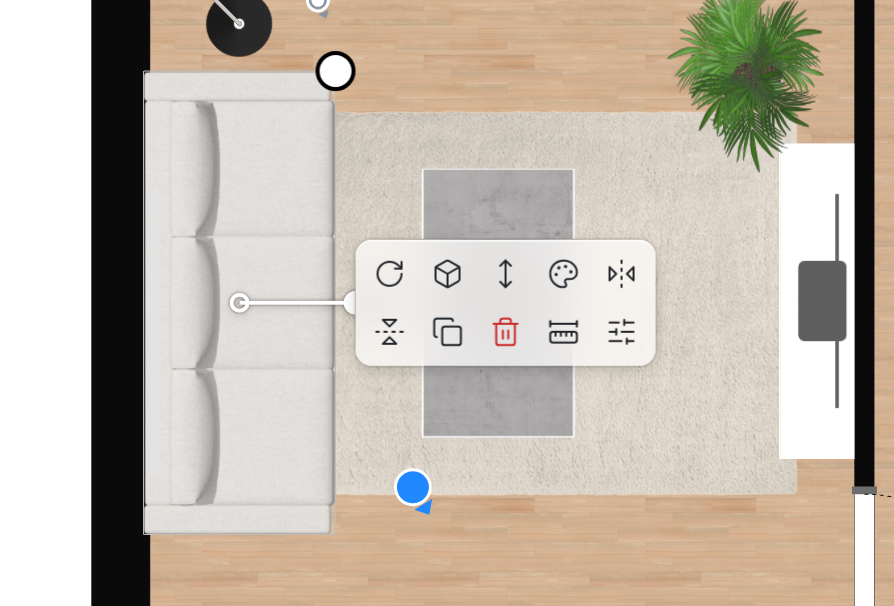
The bar opens off the object, so the object stays within reach of the mouse: you can still drag it or turn it by its handles. A curve then links the bar to it. On an object that fills the screen, a room or a wall in 3D, the bar opens near the click, with no curve.
It follows the view when you zoom or move the plan, and stays where it is when the object changes. While you drag the object it fades away; it comes back beside the object when you let go.
The last two icons
Every bar ends with the same two icons.
Dimensions, on the plan only, closes the bar and shows the object's dimensions. Their values
can be typed: type a length, then Enter. Esc or a click elsewhere takes the dimensions away;
a click on the object opens the bar again.
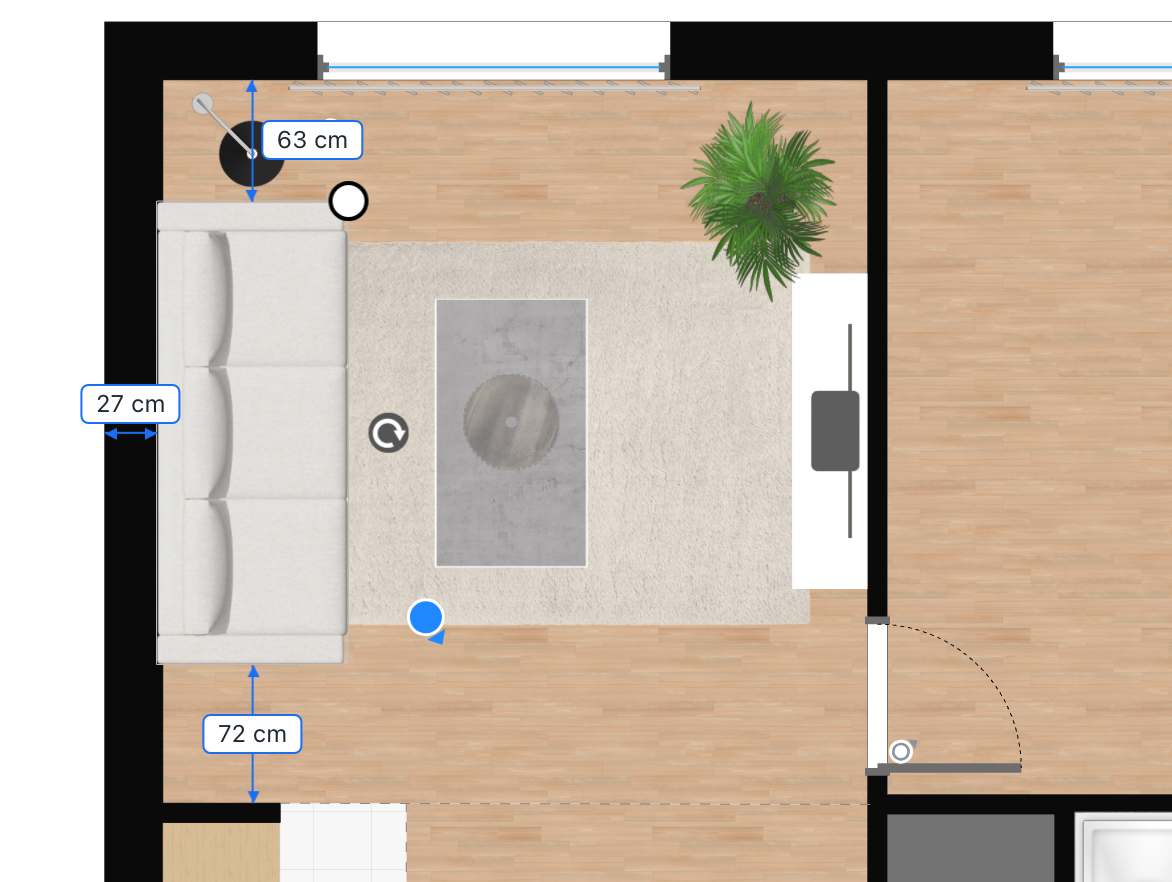
Properties opens the object's panel, with all its settings, and closes the bar. While the panel is open, the plan shows the object's dimensions too, typed the same way.
Rows that unfold
Some icons unfold a row inside the bar, above the icons: a slider, fields, swatches. Another
click on the icon folds it. Each change is undone with a single Ctrl+Z.
An icon that means nothing for an object is not in its bar: furniture with no editable part has no Colors, a sliding door has no Opening Direction.
A piece of furniture
- Rotate: an angle slider that stops every 45°, and a field for an exact angle.
- Dimensions, when your site lets objects be resized: the width, the length and the height, and a link that keeps their proportions.
- Height: the distance from the floor. A pendant also has a button that sticks it back to the ceiling.
- Colors: its first two editable parts, each with its colour and five swatches;
+opens the other shades. The parts after them are in Properties. - Replace, when the catalog has comparable objects: the similar objects.
- Mirror Horizontal and Mirror Vertical flip the object without turning it.
- Duplicate and Delete.
A locked piece of furniture has no Rotate, Dimensions or Height.
A wall
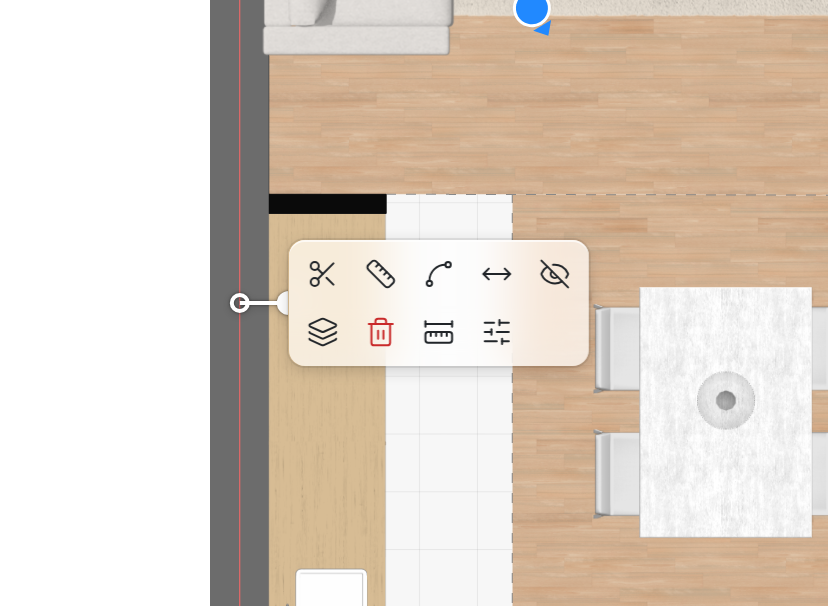
- Split the wall: the next click on the plan cuts the wall there;
Escgives up. - Add a dimension lays a lasting dimension along the wall.
- Curved Wall bends the wall or straightens it.
- Thickness: its field.
- Invisible hides the wall. On a hidden wall, Show brings it back.
- Materials: one swatch per face, in the order of the screen; the side under the pointer lights up on the plan, and a swatch opens Materials. In 3D, only the face you clicked.
- Delete.
With Dimensions, the wall shows the length of each of its two faces, along that face, and the
distance to the wall opposite. Type a face's length, then Enter: the wall's free end moves,
otherwise its right or bottom end. The field's two arrows choose which end moves.
A door, a window
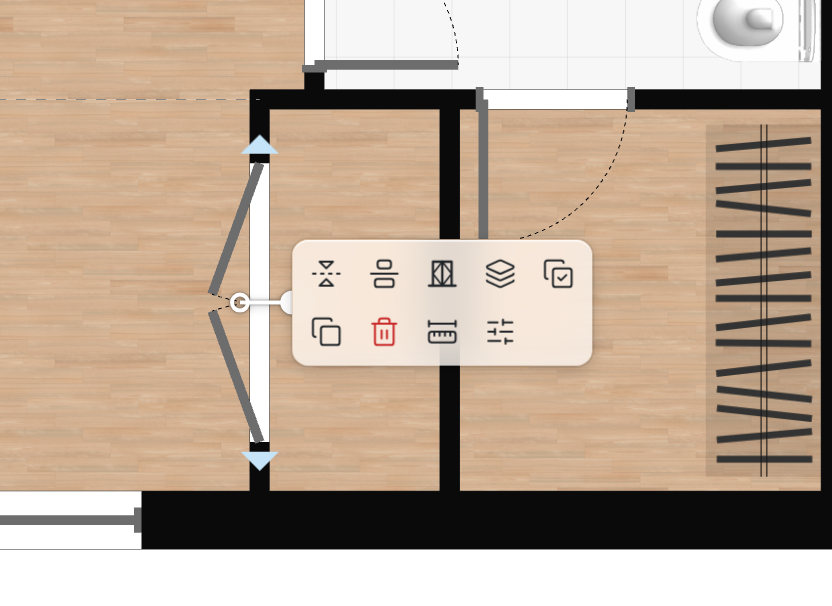
- Opening Direction makes it open to the left or to the right.
- Interior side turns it round in the wall.
- Alignment sets it against a face of the wall or in its middle.
- Type: its types, hinged, sliding, garage and the others.
- Materials: one swatch per part of the door or window. The next icon applies these materials to every door, or every window, of the level.
- Duplicate and Delete.
With Dimensions, it shows its width and its distance to its neighbours along the wall; each can be typed. Its width grows on both sides of its middle.
A room
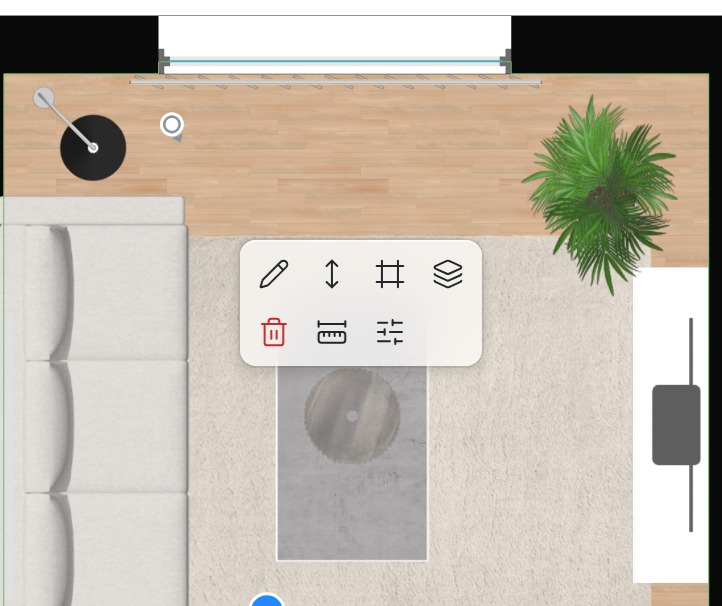
A room's bar opens on the room, near the click, and comes back with each click in the room.
- Rename: its name.
- Height: its ceiling height, or the level's.
- Moldings turns the baseboards and the crown moldings on, each with its material swatch.
- Materials: the floor, the walls and the ceiling, the name under each swatch. A hidden floor has a crossed-out swatch; giving it a material shows it.
- Delete.
With Dimensions, the room shows its width and its depth on a cross. These two values are for reading only. Drag the cross's centre to move it, and its ring to turn it, 15° at a time.
Dimensions while you drag
While you drag an object, its dimensions show on their own and go away when you let go. A piece of furniture shows its distance to a wall less than a metre away, and to another piece only when both stand against a wall.
See also
- Object Properties, Walls, Doors, Windows and Rooms describe the panels Properties opens.
- Similar objects is what Replace opens.